Choose Where Blender Renders Are Saved
Pick an output template, the .blend file's own path or a custom folder for each RenderGod job, and read the resolved path before the render starts.
The Output card decides where a job's rendered frames are saved and how the files are named. You pick an output template from one dropdown, and RenderGod shows the exact path of the first frame underneath it.
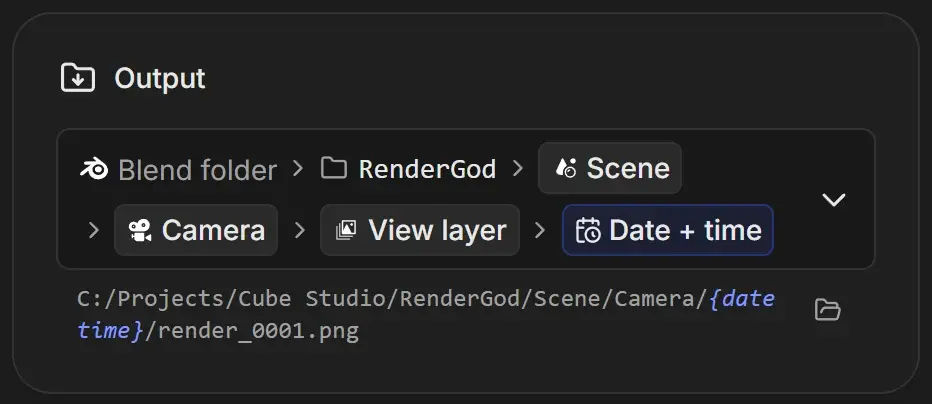
Read the output template
The dropdown shows a template as a row of chips separated by arrows. Each chip is one folder level.
| Chip look | Meaning |
|---|---|
| Blend folder (Blender icon) | Start next to the .blend file |
| Drive icon with a path | Start in a fixed folder on disk |
| Folder icon with text, such as RenderGod | A folder with that fixed name |
| Grey pill, such as Scene, Camera, View layer | Filled in from the project: scene, camera, view layer, blend name, FPS, width, height or engine |
| Blue pill, such as Date + time or Version | Filled in when the render starts |
| Dashed pill | Only added when the file has more than one (for example, more than one view layer) |
Hover a chip to see what it stands for. The file name (by default render_####, where #### is the four-digit frame number) is hidden in the dropdown but shown in the path line.
Pick where a job saves its frames
Open the dropdown on the Output card and choose one option.
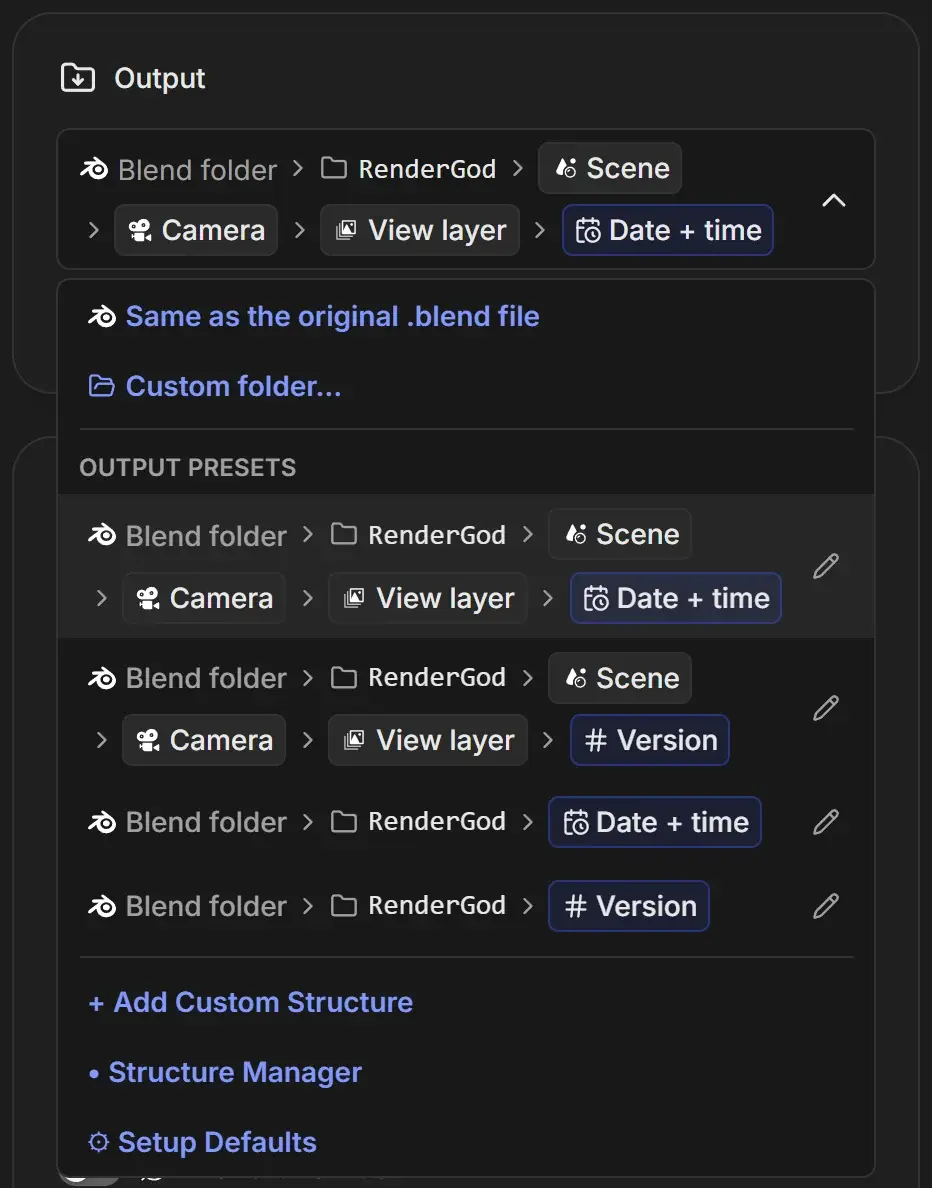
| Option | What it does | When to use it |
|---|---|---|
| Same as the original .blend file | Uses the output path saved in the scene's Output Properties in Blender | You already set the path in Blender and want exactly that |
| Custom folder... | Opens a folder picker. The job keeps its current file name and shows as Custom (this job) | One-off renders to a specific folder |
| Output Presets (chip rows) | Applies a saved template to this job | Consistent, organized folders across projects |
| My templates | Your own templates, listed only when you have some | Studio or client naming conventions |
| + Add Custom Template | Opens the template builder | See Build a custom output template |
| Output Templates Manager | Lists, edits and deletes templates | See Manage output templates |
| Setup Defaults | Opens the output template section of Settings | Change the template new jobs start with (Output Templates settings) |
Every template row has a pencil icon that opens it straight in the editor.
Built-in output presets
| Template | Result |
|---|---|
| Organized (default for new jobs) | Blend folder/RenderGod/Scene/Camera/View layer/Date + time/render_#### |
| Versioned | Blend folder/RenderGod/Scene/Camera/View layer/001/render_#### |
| Flat, date and time | Blend folder/RenderGod/Date + time/render_#### |
| Flat, versioned | Blend folder/RenderGod/001/render_#### |
Version uses the next free number after the highest existing one, with three digits (001, 002 and so on).
Re-read the path from the .blend file
When Same as the original .blend file is selected, a circular arrow button appears next to the dropdown (Re-read the output path from the Blender file). Use it after you change the output path in Blender and save.
When a job uses Custom (this job), a folder button (Browse for a different folder) lets you pick another folder without opening the dropdown.
Check the resolved path
The line under the dropdown shows the full path of the first frame, for example C:/Projects/Cube Studio/RenderGod/Scene/Camera/{datetime}/render_0001.png.
- Blue italic parts are not known yet. They are assigned when the render starts. Hover one to see what it will be, such as "Version - will be 2 (next free number)".
- The folder button next to the line opens the output folder. Before the render starts it opens the parent folder, because the final folder is created when rendering begins.
- A red warning icon means the template cannot be used as is, for example a path that is not absolute. The first error is shown in the line.
- If RenderGod cannot work out the path, you see "Couldn't work out where this job will write." with Try Again.
Warnings under the path
Amber warnings tell you RenderGod corrected something in the file's output setup:
- The scene is set not to save render output (Blender 5.2 and later). RenderGod saves the frames anyway.
- A File Output node writes files without an extension. RenderGod adds the extension.
- The scene saves to a folder that does not exist on this computer. RenderGod uses the
.blendfile's folder or its own output path instead.
These warnings also appear as notifications when you import the file.
When the output folder is fixed
- Date + time and Version are set once, when the render starts.
- Pausing and resuming a job keeps writing into the same folder.
- After a job has rendered, changing its camera or view layer does not move the folder. Applying a different template or a custom folder does.
- A duplicated job gets a fresh date or version, so it never overwrites the original.
\\server\share only apply on Windows.