Optimization Overrides for GPU, Tiles, Fast GI and Textures
Force Cycles onto the GPU, set tile size, Fast GI and texture limits, and render without add-ons using RenderGod optimization overrides for faster renders.
Optimization overrides replace speed and memory settings saved in the .blend file for one job. They let you force Cycles onto the GPU, avoid out-of-memory errors on large scenes, and render without add-ons, without opening Blender.
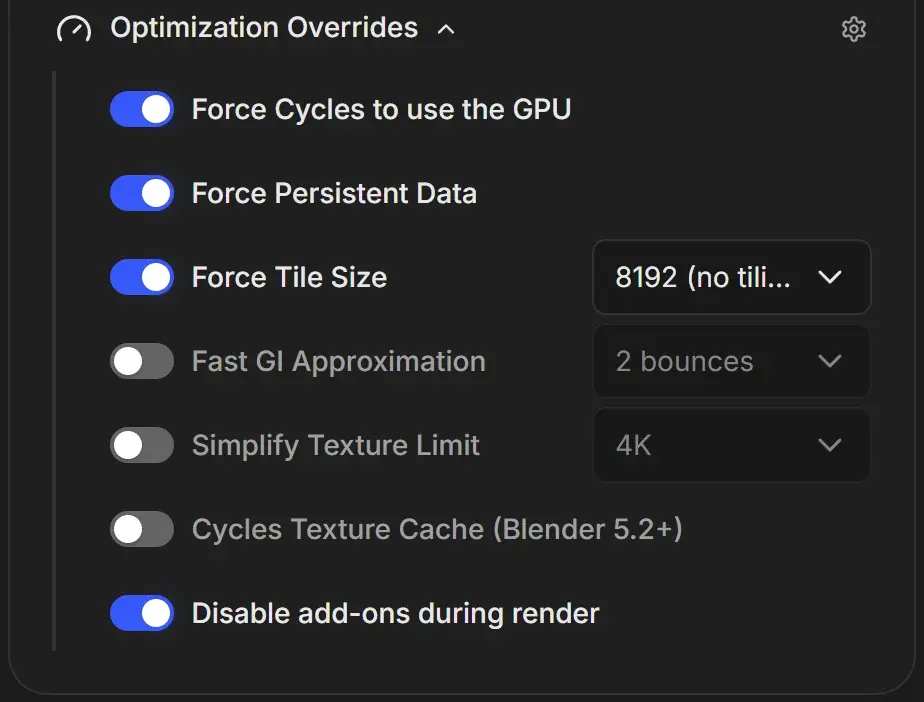
Open the optimization overrides
- Select the job.
- Click Optimization Overrides in the render settings card to expand it.
- Turn switches on or off. You can click the whole row label. Where a row has a dropdown, it is greyed out until the switch is on.
The gear icon on the right opens Optimization Overrides settings, where you set the values new jobs start with.
A switch that is off leaves the scene's own setting unchanged.
All overrides
Every row except the last applies to Cycles only and is hidden for EEVEE jobs.
| Override | What it does | Factory default | When to change it |
|---|---|---|---|
| Force Cycles to use the GPU | Sets Cycles to render on this computer's GPU, whatever device the scene was saved with | On | Turn off to render on the CPU, for example when the scene does not fit in GPU memory |
| Force Persistent Data | Keeps geometry and other data in memory between frames, so later frames start faster | On | Turn off if memory runs out on long animations |
| Force Tile Size | Sets the Cycles render tile size | On, 8192 (no tiling) | Pick a smaller tile when the GPU runs out of memory |
| Fast GI Approximation | After the chosen number of light bounces, ambient occlusion stands in for further bounces | Off, 2 bounces | Faster interiors and heavy indirect lighting, with slightly less accurate light |
| Simplify Texture Limit | Textures larger than the chosen size are scaled down for the render | Off, 4K | Scenes with many 8K textures that do not fit in VRAM |
| Cycles Texture Cache (Blender 5.2+) | Builds tiled copies of your textures and streams them on demand | Off | Huge texture sets on limited VRAM, when disk space is available |
| Disable add-ons during render | Starts Blender without your installed add-ons | On | Turn off only when the project needs a specific add-on to render |
Force Cycles to use the GPU
RenderGod picks the best GPU backend available, in this order: OptiX, CUDA, HIP, Metal, oneAPI.
| Hardware | Backend |
|---|---|
| NVIDIA | OptiX or CUDA |
| AMD | HIP |
| Intel | oneAPI |
| Mac | Metal |
If the computer has no supported GPU, the scene's device is left unchanged. Hover the row: when Blender supports a backend but no matching GPU was found, the tooltip says so.
Force Tile Size options
| Option | Use |
|---|---|
| 8192 (no tiling) | The whole frame renders as one tile. Fastest, uses the most GPU memory. |
| 4096, 2048 | Large frames (4K and above) on cards with moderate memory |
| 1024, 512 | When the GPU still runs out of memory. Slower. |
Fast GI Approximation options
1 bounce, 2 bounces, 3 bounces, 4 bounces, 6 bounces, 8 bounces. Fewer bounces is faster but darker and less accurate in corners and interiors.
Simplify Texture Limit options
128, 256, 512, 1K, 2K, 4K, 8K. 4K is a good balance. Go lower when memory runs out, knowing close-up textures will look softer.
Cycles Texture Cache
This option needs Blender 5.2 or later and is ignored by older versions. It writes .tx files beside your texture files, so the project folder grows. It uses less GPU memory in exchange for disk space.
Disable add-ons during render
With this on, Blender starts in factory mode: no user add-ons load. Renders start faster and are not affected by add-on bugs. The same setting applies to the physics bake step.
Turn it off when a project relies on an add-on at render time, for example one that generates geometry or registers render handlers. Those add-on handlers then appear under Add-on Handlers in the Python Hooks card.
Fix a GPU out-of-memory render
Try these in order, rendering a test frame after each:
- Set Force Tile Size to 2048, then 1024.
- Turn on Simplify Texture Limit at 4K, then 2K.
- On Blender 5.2 or later, turn on Cycles Texture Cache.
- Turn off Force Persistent Data.
- Turn off Force Cycles to use the GPU to render on the CPU.