Render Settings
Advanced EEVEE Settings for Shadows and Ray Tracing
Turn on shadows, ray tracing and a transparent background for EEVEE render jobs in RenderGod, and avoid EEVEE renders that come out without shadows.
The Advanced section of an EEVEE job has three switches: Film Transparent, Shadows and Ray-Tracing. They control the background transparency and the two most visible EEVEE lighting features for this job.
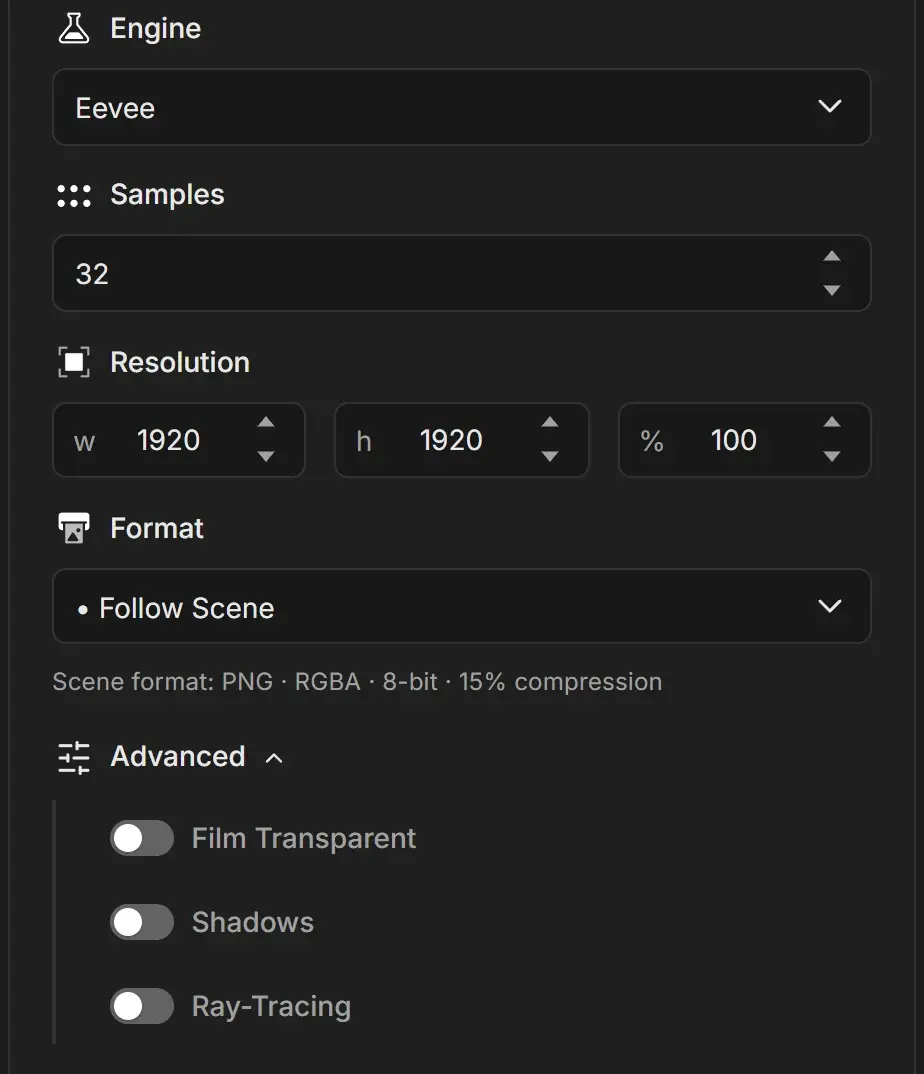
Open the EEVEE settings
- Select a job whose Engine is Eevee.
- Click Advanced in the render settings card to expand it.
Advanced EEVEE options
| Switch | What it does | Starts as | When to turn it on |
|---|---|---|---|
| Film Transparent | Renders the world background as transparent | The scene's value | Compositing over other footage or backgrounds |
| Shadows | Turns on EEVEE shadow rendering | Off | Almost always, for any scene with lights that should cast shadows |
| Ray-Tracing | Turns on EEVEE ray tracing for more accurate reflections, refraction and shadows | Off | Glossy surfaces, glass, mirrors, polished product shots |
Shadows and Ray-Tracing need Blender 4.2 or later.
Shadows and Ray-Tracing start off on new jobs, whatever the scene uses in Blender. If your scene needs shadows or ray tracing, turn them on here before you start the queue, then check the first frames in the preview.
Get a transparent background
Turn on Film Transparent and set Format to a format with alpha, such as PNG | RGBA | 8 | (15%) or an EXR | RGBA option. See Output image formats.
Speed and quality tips for EEVEE
- Samples controls anti-aliasing and soft effects. 32 to 64 is enough for most finals; 16 works for drafts.
- Ray-Tracing adds render time. Leave it off for flat or stylized looks.
- Ray tracing results changed in Blender 5.2. If a file saved in an older version looks different, check which Blender version renders the job.
- The Cycles-only rows in Optimization Overrides are hidden for EEVEE. Only Disable add-ons during render applies.
Save your EEVEE setup as a preset
Presets store Film Transparent, Shadows and Ray-Tracing together with the engine and samples. Set up one EEVEE job, then save it with Preset > ADD. See Create your own render preset.