Video Encoding Failed in RenderGod
Fix conversion jobs and Auto Create Video that end in Failed: GPU encoders, odd resolutions, DNxHD sizes, missing audio, missing sources and folder access.
When video encoding fails, the conversion job or the Auto Create Video row on a render job shows Failed. Your rendered frames are not affected, so you can fix the setting and encode again without rendering.
Symptoms
- A conversion job card shows Failed with a red box holding the encoder's message.
- A render job shows Done, but its Auto Create Video row shows Failed.
- The job finishes but the video will not open in your player.
Try these first
- Switch from GPU to CPU. Select the job and click CPU under Encoding. Hardware encoders support fewer sizes, pixel formats and profiles than the CPU encoders. See GPU and CPU encoding.
- Pick a built-in format. Try H.264 High mp4 or ProRes 422 HQ mov. If that works, the problem is in a custom format. See Manage encoding formats.
- Check free disk space on the export folder's drive.
- Close the old video if it is open in a player or editor. The new file replaces it and cannot while it is open.
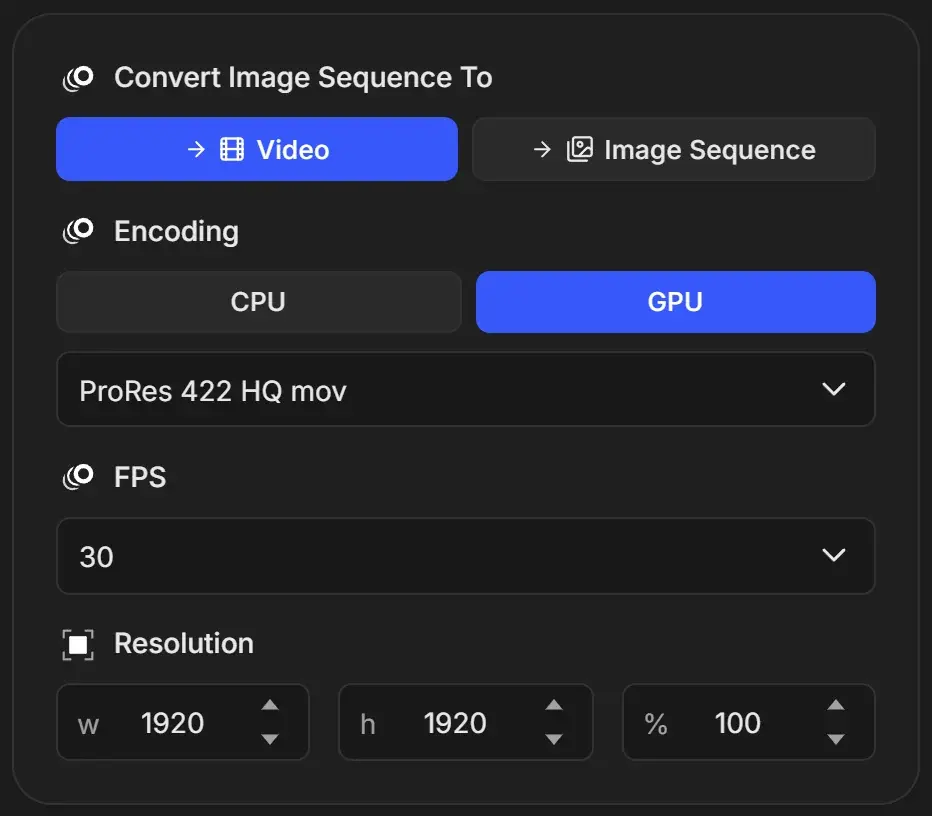
Then encode again: for a conversion job, Duplicate it and click Start, or Retry it if the card shows the button. For a render job, import its output folder with Import > Image Sequence and encode the frames as a conversion job. See Turn an image sequence into a video.
Common causes
| Cause | What you see | Fix |
|---|---|---|
| Odd width or height with H.264 or H.265 | Failure right at the start of encoding, for example with a 1921 x 1081 source | Set Resolution to even numbers, such as 1920 x 1080 |
| DNxHD with a non-broadcast size or frame rate | DNxHD formats fail on sizes such as 1920 x 1920 | Use ProRes instead, or set 1920 x 1080 and a standard frame rate |
| Custom format with an incompatible combination | A format you created fails while built-in ones work | Edit the format, or return profile and pixel format to their defaults. See Create a custom encoding format |
| Extracting audio from a video that has no sound | A Video job set to Audio fails | The video has no audio track. Nothing can be extracted |
| The source file moved | "Source File Not Found" on the preview card | Move it back or reconnect the drive, then click Check Again |
| Frames missing or numbered with gaps | The video is shorter than expected, or the job fails | Keep one sequence per folder, numbered without gaps |
| Unsupported frame format | .cin frames are imported but cannot be encoded | Convert the frames to PNG, EXR, TIFF or DPX first |
| No permission to read the folder | "Could not list ... - see RenderGod.log for the reason" | On macOS, allow RenderGod access to the folder when asked, or in System Settings > Privacy & Security > Files and Folders |
The video encoded but looks wrong
| Problem | Why | Fix |
|---|---|---|
| Transparent areas are black | H.264, H.265 and AV1 cannot store alpha | Use ProRes 4444 (Alpha) mov |
| EXR video looks dark or flat | EXR values are encoded without Blender's view transform | Render PNG frames for review videos, or use Auto Create Video on the render job |
| Video plays too fast or too slow | The frame rate sets playback speed | Set FPS to the animation's frame rate |
| Video will not play on a phone or in a browser | ProRes and DNxHD are editing formats | Use H.264 High mp4 |
| An older conversion was replaced | Image sequence videos are always named output | Use a different export folder for each version |
On macOS
GPU encoding uses the Mac's built-in hardware encoder for H.264 and H.265. ProRes always encodes on the CPU. If a GPU encode fails, choose CPU.