Render Preview Not Showing in RenderGod
Fix an empty or missing render preview in RenderGod, frames that cannot be read, EXR and ProRes files that will not play, and previews in a browser.
If a render preview is not showing, the message on the preview card usually tells you why. Find the message or situation below.
No preview card at all
| Situation | Why | What to do |
|---|---|---|
| A job that has never rendered | Preview cards appear only once frames exist or the job is rendering | Click Start. The card appears as the render begins |
| A File Output node has no card | File Output nodes only render while Compositor is on | Turn on Compositor for the job. See Render compositor File Output nodes |
| No Preview button on the job card | The button appears once rendered images exist in the export folder | Wait for the first frame, or check the output folder |
| No Preview: Output Video card | It appears only with Auto Create Video on, while encoding or after the video exists | Turn on Auto Create Video. See Create a video automatically |
Messages on the preview card
| Message | Meaning | What to do |
|---|---|---|
| "Starting Render" | Blender is opening the file. The first frame appears when it is written | Wait. Heavy scenes take a while to load |
| "Baking Physics" | Simulations are baking before rendering | Wait, or click Skip Baking on the job card |
| "Rendering Frame N" | The frame you are looking at is not finished yet | Drag the frame slider back, or click LIVE |
| "No Rendered Frames Yet" with "Start the queue to render this job" | Nothing has been rendered | Click Start |
| "No Rendered Frames Yet" with "This job stopped before writing a frame. Its error is on the queue card." | The job failed before the first frame | See Render error messages and fixes |
| "Preview Unavailable" | The reported frame could not be read several times in a row | Click Open Folder to check the file, or step to another frame. The file may be locked by another app, still being written, or on a disconnected drive |
| "No Preview Available" | Nothing in this output can be drawn | Check the output format and folder |
| "Encoding Output Video" | The video is still being written | Wait for the encode to finish |
| "Cannot play this format" with Building… and Stop | ProRes, DNxHD and some other codecs cannot play inside RenderGod, so a small H.264 preview copy is being built | Wait for it to finish. Your real file is unchanged |
| "Cannot show these frames" with Build preview proxies | The sequence is in a format this window cannot draw | Click Build preview proxies. Small JPEG copies are written in a hidden .previews folder next to the frames |
| "Source File Not Found" with Check Again | A conversion job's source file has moved or its drive is disconnected | Reconnect the drive or move the file back, then click Check Again |
EXR, DPX, TGA and TIFF frames from a render show in the preview without extra steps. See Preview EXR, DPX, TIFF and other formats.
The preview is black, white or looks wrong
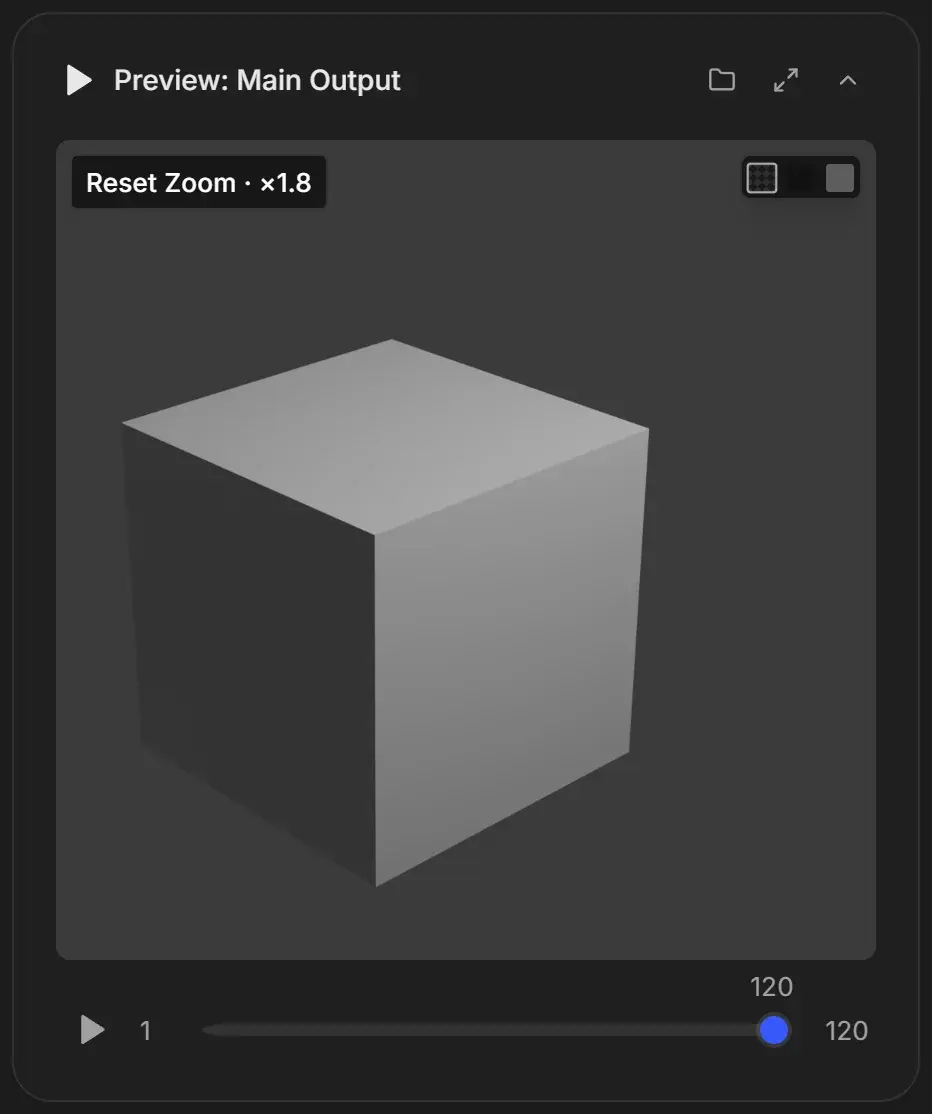
- Transparent renders show a checkerboard behind the image. Pick the black or white background swatch at the top right of the card to see edges better.
- Zoomed in by accident: press 0 or double-click the image to reset the zoom.
- Playback looks soft: while playing or scrubbing, small preview copies are shown for speed. Stop on a frame to see it at full resolution.
The Previews window says Job Not Found
"It was removed from the queue, or the queue has not finished loading." Click Close Window and open the previews again from the job card.
Previews in a browser (remote control)
| Message | What to do |
|---|---|
| "Connecting to Your Computer" | Keep the tab open. It retries by itself |
| "Preview Connection Failed" with Try Again | Click Try Again. If it keeps failing, check the computer as below |
On the rendering computer, open Settings > Remote Control. If it shows "Previews may not reach you away from home", follow its advice. On Windows, click Allow it through Windows Firewall and accept the prompt.
A browser shows the small preview images only. Full-resolution frames and finished video playback are available on the computer itself. See What you cannot do from a browser.
Telegram previews
| Reply from the bot | What to do |
|---|---|
| "No rendered frame found" | Render at least one frame, and check the export folder has frames |
| "Insufficient frames" | /video needs at least 2 rendered frames |
| "Video creation failed" | Try again in a moment |
See Receive render previews on your phone.