Receive Render Previews on Your Phone
Get the latest rendered frame and a short preview video from RenderGod in Telegram, automatically when a render finishes or on demand with /frame and /video.
Your Telegram bot can send render previews to your phone: a still of the latest frame and a short preview video. They arrive automatically when a render finishes, or whenever you ask with a command.
Get previews automatically
- Open Settings > Telegram Bot.
- Turn on Render completed.
- Tick Send latest frame preview, Send video preview, or both.
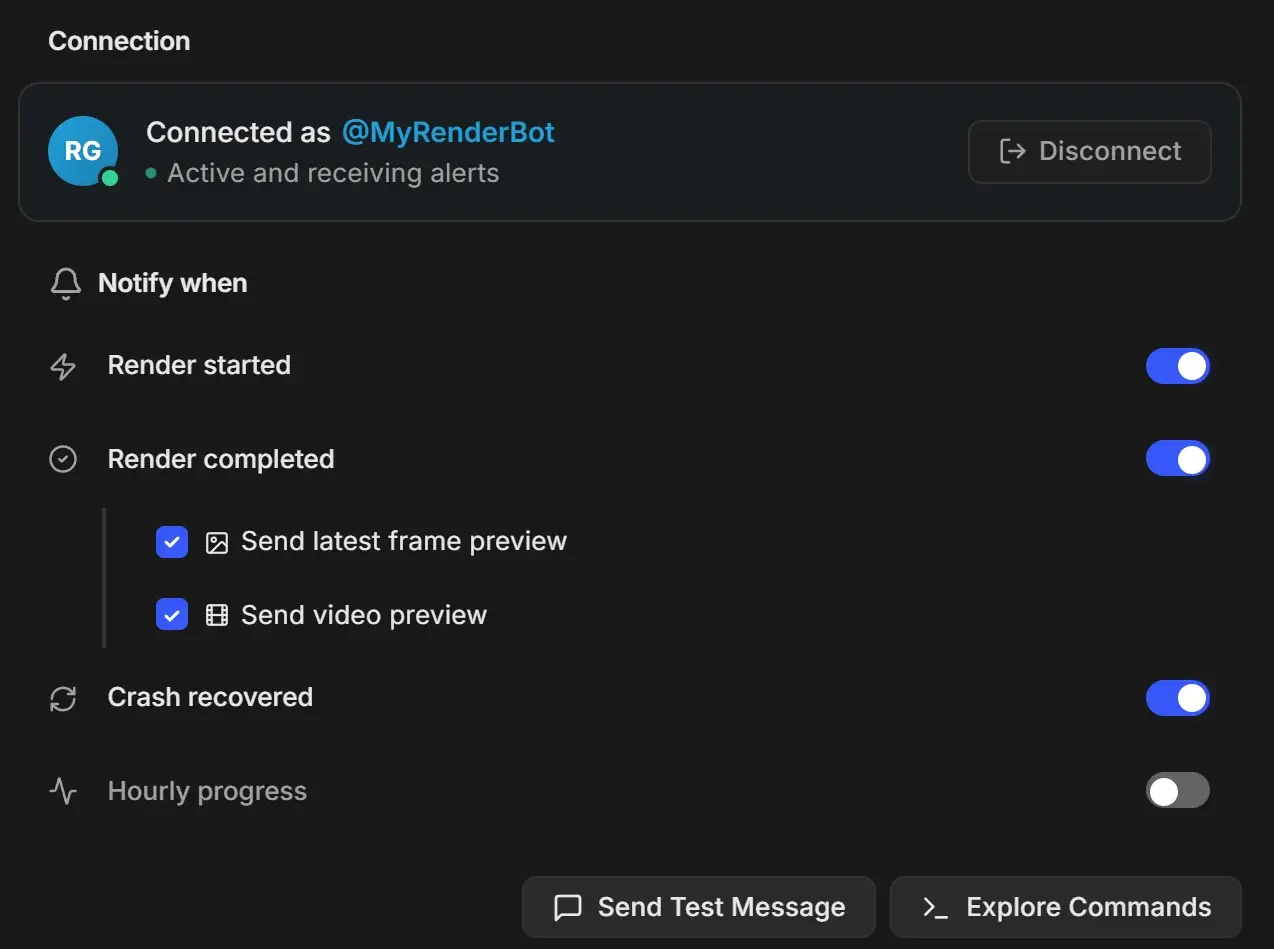
When a Blender render job finishes, you receive the "Render Completed!" message, then the final frame captioned "Final Frame" with the project and file name, then the preview video. See Choose which Telegram notifications you get.
Get a preview on demand
| Send | You get |
|---|---|
/frame | The most recent rendered frame of the job that is rendering, or of the most recent job |
/video | A preview video of all frames rendered so far |
You can send both in the middle of a render to check that it looks right. See Telegram bot commands.
What the frame preview looks like
- The newest frame (highest frame number) is sent as a photo.
- EXR, DPX and other formats that Telegram cannot display are converted to PNG first.
- Frames larger than 20 MB arrive as a compressed preview captioned "Latest Rendered Frame - Preview" (or "Final Frame - Preview") with two buttons: Download Original sends the full-quality file as a document, and Skip does nothing.
What the preview video looks like
| Property | Value |
|---|---|
| Size | 640 pixels wide |
| Length | About 3 seconds, however many frames were rendered |
| Minimum | 2 rendered frames |
| Quality | Low, for a quick look. The caption says "This is a low-quality preview video for quick review. Not suitable for final output." |
For a full-quality video of the finished render, use Create a video automatically when a render finishes.
If a preview is not sent
| Reply | Cause and fix |
|---|---|
| "No rendered frame found" | No frames exist yet. Start a render, and check that the export folder has frames. |
| "Frame file not found" | The frame was moved or deleted after rendering. |
| "No render job found" | No job is rendering and none has finished recently. |
| "Insufficient frames" | Only one frame exists. Wait for a second frame. |
| "Video creation failed" | Try again in a moment. If it keeps failing, check the job's frames in RenderGod. |
A render job whose output is set to a video format in Blender, without usable FFmpeg settings, shows a red warning on its job card that preview videos are not supported. Click Change to PNG on the card to render frames instead. See Output image and video formats.