Get Render Notifications on Telegram
Connect your own Telegram bot to RenderGod to get render notifications, frame and video previews, and to start, stop or skip renders from your phone.
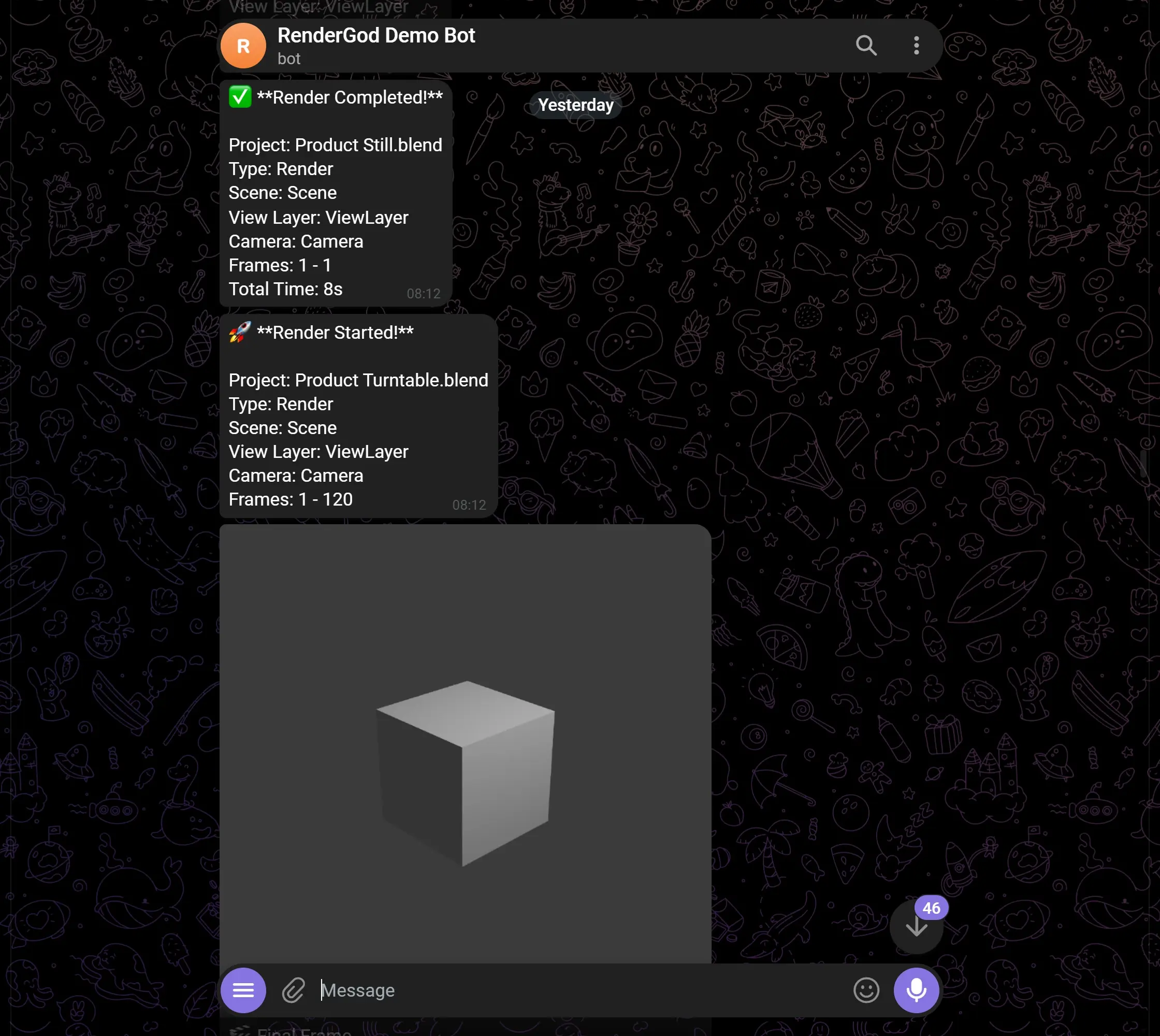
RenderGod can send render notifications to Telegram through a private bot that you create. From the same chat you can check progress, get the latest frame or a short preview video, and start, stop or skip the queue while you are away from the computer.
What the Telegram bot does
| You can | How |
|---|---|
| Get a message when a render starts, finishes or recovers from a crash | Automatic, see Choose which Telegram notifications you get |
| See the last frame and a short preview video when a render finishes | Automatic, see Receive render previews on your phone |
| Get an hourly progress update | Automatic, off by default |
| Check status, the queue, the latest frame or a preview video on demand | /status, /queue, /frame, /video |
| Start, stop or skip renders | /run, /stop, /skip |
| Put the computer to sleep or shut it down | /power |
The full list is in Telegram bot commands.
How it works
- The bot is yours. You create it with Telegram's BotFather in about a minute, and only your chat can use it.
- The bot runs through RenderGod on your computer. Messages and commands only work while the computer is on, RenderGod is running, and you are signed in to RenderGod.
- On Windows with PC crash recovery set up, notifications keep arriving while a recovered render runs in the background.
- Rendering never leaves your computer. Telegram receives the messages, frames and small preview videos that you ask for.
Set it up
- Create your Telegram bot with BotFather and copy its token.
- Connect the bot to RenderGod: paste the token and send
/startto your bot. - Pick your notifications in Settings > Telegram Bot.
When the bot is connected, the header shows a Telegram button with a green dot and your bot's name, for example @MyRenderBot.

Telegram or remote control?
The Telegram bot is best for alerts and quick commands. To see the whole queue and change render settings from a phone or another computer, use remote control from a browser. You can use both.