Manage Browsers Connected to Your Computer
See which browsers are controlling your RenderGod computer, end a browser session, disconnect every browser at once and sign a browser out of remote control.
You can see and manage connected browsers from the rendering computer at any time, and sign out from the browser side when you are done.
See who is connected
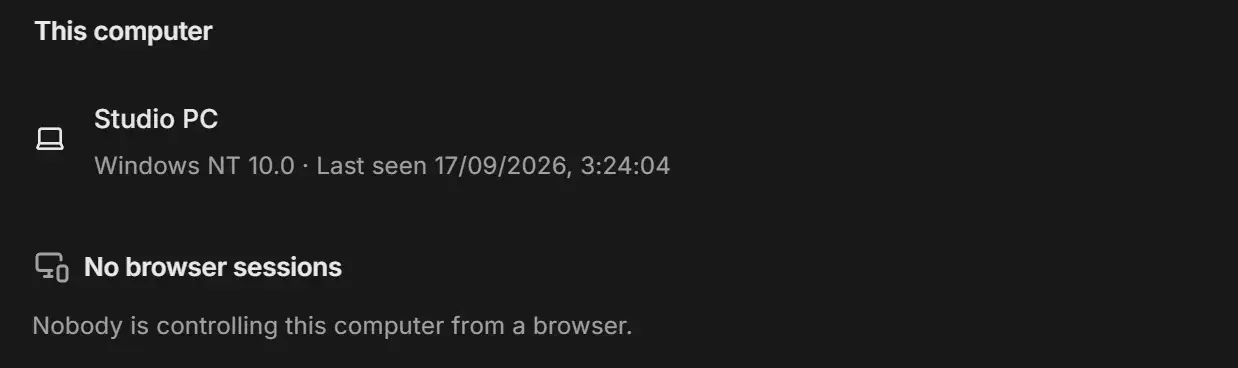
Open Settings > Remote Control on the rendering computer. The sessions group at the bottom shows one of these:
| Heading | Meaning |
|---|---|
| "No browser sessions" | "Nobody is controlling this computer from a browser." |
| "1 browser session open" (or more) | Each browser is listed as, for example, "Chrome is connected", with "Since" the time it connected and "last active" time. |
| "Couldn't check who is connected" | The list may be outdated. Click Check again, or turn remote control off to disconnect all browsers. |
The browser name comes from the browser itself: Chrome, Edge, Firefox, Safari, Opera, or "A browser". The list refreshes every 15 seconds while the section is open.
Disconnect browsers
| To | Do this | Effect |
|---|---|---|
| End one browser's session | Click End session next to it | That session is marked as ended. The browser is told "this browser session was ended from the computer". |
| Cut off every browser immediately | Click Turn Off under Browser access | The connection closes for all browsers and the computer refuses commands until you turn remote control on again. |
| Require approval again | Turn off Allow browsers without asking | Browsers that were already let in are disconnected, and each new one must be approved. |
| Undo a Just this time approval | Restart RenderGod | The approval lasts only until RenderGod restarts. |
Sign a browser out
On the device you used, sign out when you no longer need it, for example on a shared or borrowed computer.
- While controlling a computer: click the computer name in the header and choose Sign Out of This Browser.
- On the computer list: click Sign out of this browser at the bottom.
This signs out only that browser. The rendering computer stays signed in and keeps rendering. To sign the computer out, do it at the computer in Account settings.
Leave without signing out
Close the tab, or choose Switch Computer from the computer name in the header. The browser session stops showing as active on the computer shortly after.