Approve or Deny Browser Access to Your Computer
Decide which browsers can control your RenderGod computer with Always allow, Just this time or No, and approve risky remote actions like clearing the queue.
RenderGod asks on the rendering computer before a new browser can control it, and again before a browser runs actions that delete data or close programs. This page explains how to approve or deny browser access and each request.
When a new browser connects
If Allow browsers without asking is off in Settings > Remote Control (the default), a new browser does not get in until someone at the computer answers.
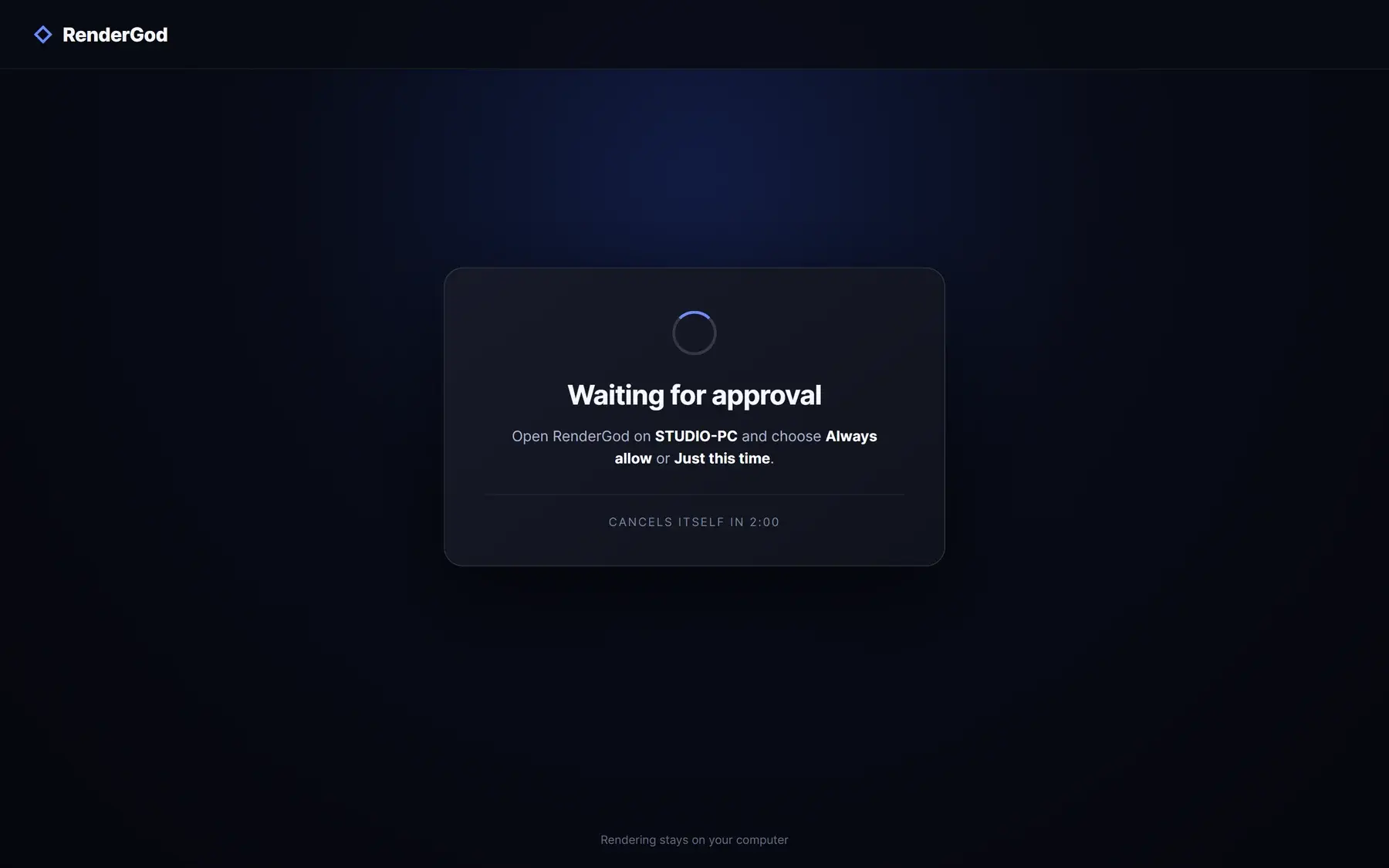
In the browser, a card says "Waiting for approval" with "Open RenderGod on Studio PC and choose Always allow or Just this time." and a timer, "Cancels itself in 2:00".
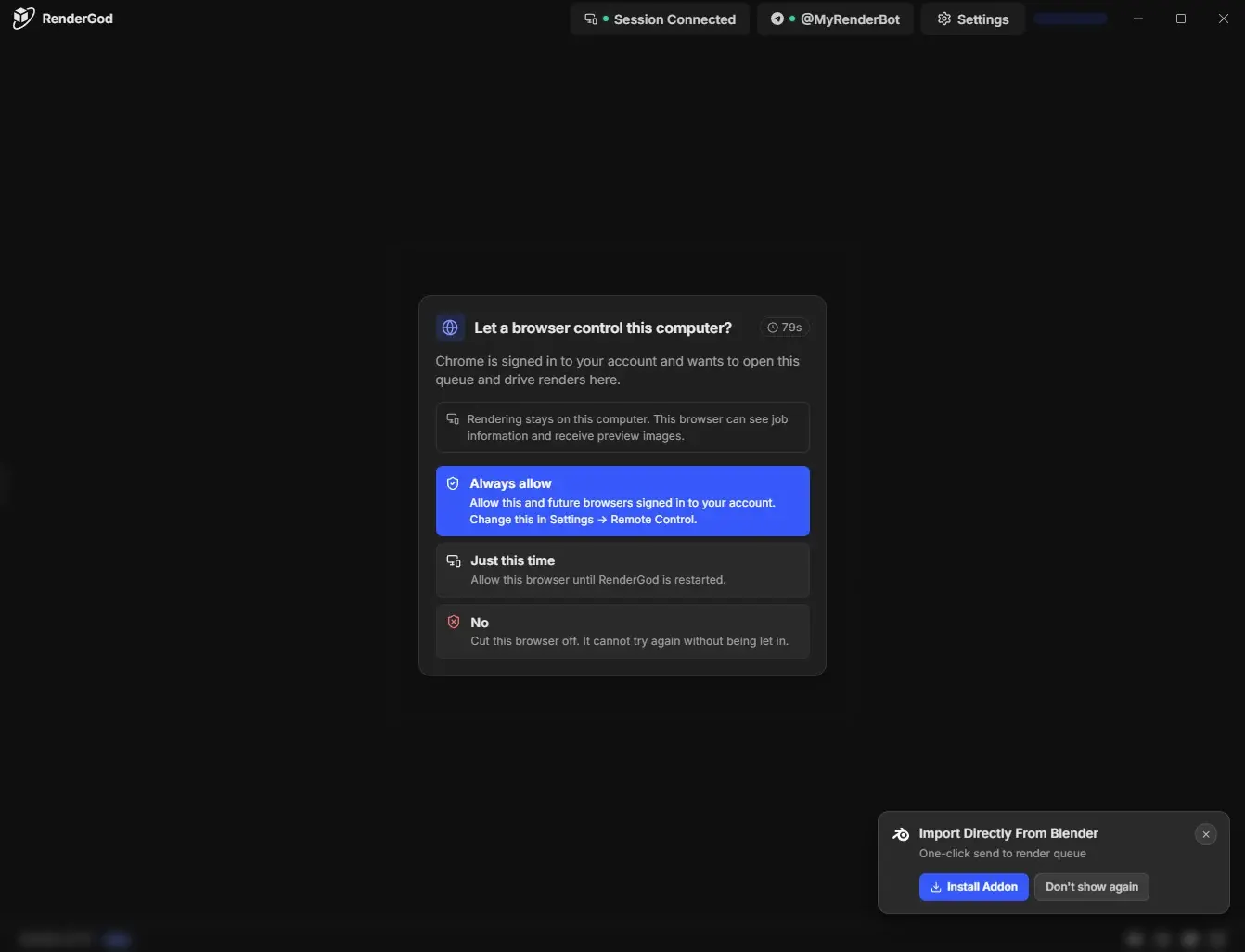
On the computer, RenderGod shows Let a browser control this computer? with "A browser is signed in to your account and wants to open this queue and drive renders here." A timer in the corner counts down the seconds left. A note repeats that rendering stays on this computer and that the browser can see job information and receive preview images.
| Choice | What it does | Use it when |
|---|---|---|
| Always allow | "Allow this and future browsers signed in to your account." It turns on Allow browsers without asking, which you can change in Settings > Remote Control. | You trust every device signed in to your account |
| Just this time | "Allow this browser until RenderGod is restarted." | A one-off check from a phone or a borrowed computer |
| No | Cuts this browser off. It cannot try again without being let in. | You do not recognise the request |
Whatever the browser tried to do while it was waiting runs after you approve it.
What the browser sees if it is not let in
| Title | Meaning | Buttons |
|---|---|---|
| "No answer" | Nobody answered on the computer in time | Ask Again, Choose Another Computer |
| "Not let in" | Someone chose No on the computer | Ask Again, Choose Another Computer |
Ask Again sends a new request that someone at the computer must approve.
Actions that need approval on the computer
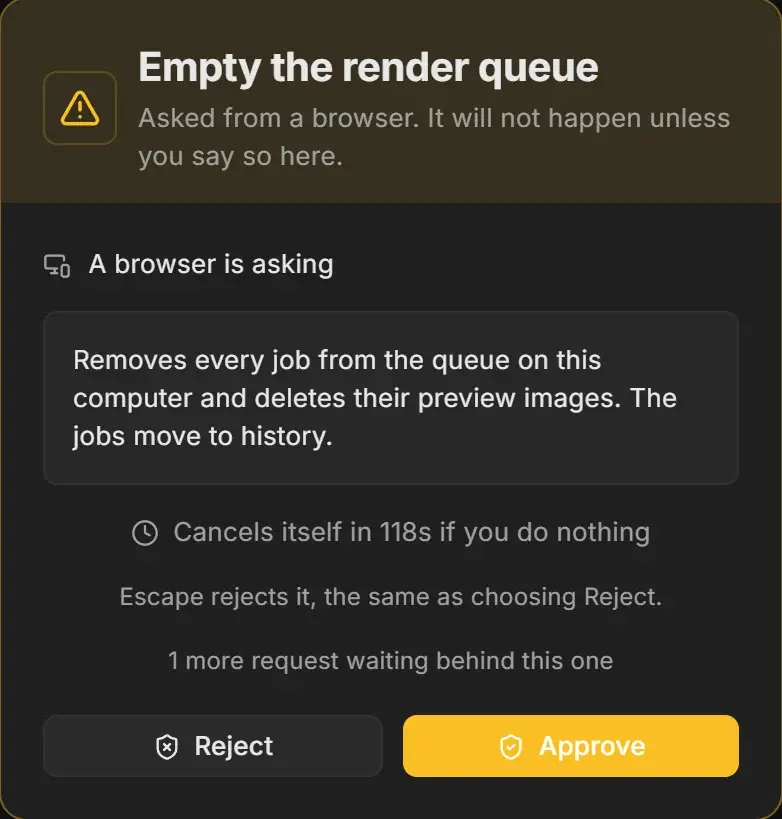
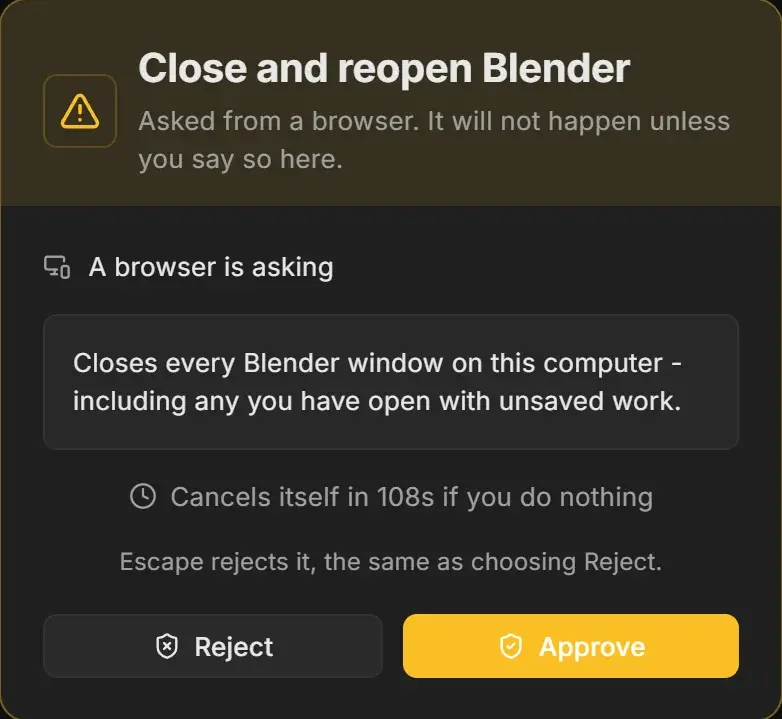
Even from an approved browser, some actions never run until someone at the computer approves them. The computer shows a dialog titled after the action with "Asked from a browser. It will not happen unless you say so here.", then A browser is asking and a description of what the action does.
| Action from the browser | Dialog title on the computer | What it does |
|---|---|---|
| Clear the queue | "Empty the render queue" | Removes every job and deletes their preview images. The jobs move to history. |
| Delete render history | "Permanently delete the render history" | Erases every finished and removed job for good. Cannot be undone. |
| Restart Blender | "Close and reopen Blender" | Closes every Blender window, including unsaved work. |
| Force-close Blender | "Force-close Blender" | Ends every Blender process on the computer. Anything unsaved is lost. |
| Force-close all Blender | "Force-close every Blender process" | Ends every Blender on the computer, including ones RenderGod did not start. |
| Force-close video encoders | "Force-close every video encoder" | Ends every video encoding process. A video being written is left unfinished. |
| Force-close everything | "Force-close Blender and every video encoder" | Ends every Blender and video encoding process. |
| Change the Telegram bot token or chat, or disconnect Telegram | The command name | "It is on the list of actions RenderGod always asks about first." |
- Approve runs it on the computer now.
- Reject refuses it. Nothing runs and the browser is told you said no. "Escape rejects it, the same as choosing Reject."
- If nobody answers, the request cancels itself after 2 minutes. The dialog counts down, for example "Cancels itself in 118s if you do nothing".
- When several requests arrive, they are shown one after another, and the dialog says how many are waiting, for example "1 more request waiting behind this one".
In the browser, the action reports that it "is waiting for approval on your computer", or that it "was just refused on the computer".
Shutdown and sleep
Shutdown and sleep from a browser do not ask for approval. They start the normal 30-second countdown on the computer, which anyone at the computer can cancel. See Shut down or sleep when the queue finishes.
Change your answer later
- To start asking again, turn off Allow browsers without asking in Settings > Remote Control. Browsers that were already let in are disconnected.
- To disconnect one browser, use End session. To disconnect all, click Turn Off. See Manage connected browsers.