Turn On Remote Control in RenderGod
Turn on RenderGod remote control on the rendering computer, choose whether new browsers need approval, name the computer and fix firewall warnings on Windows.
Turn on remote control on the computer that renders, so you can reach it from a browser on another device. It is off by default and takes a few seconds.
Before you start
- RenderGod is installed and running on the rendering computer.
- You are signed in. If not, the section shows "Remote control is unavailable"; sign in from Account first.
Turn it on
Open Settings > Remote Control, or click the Remote Control button in the header.
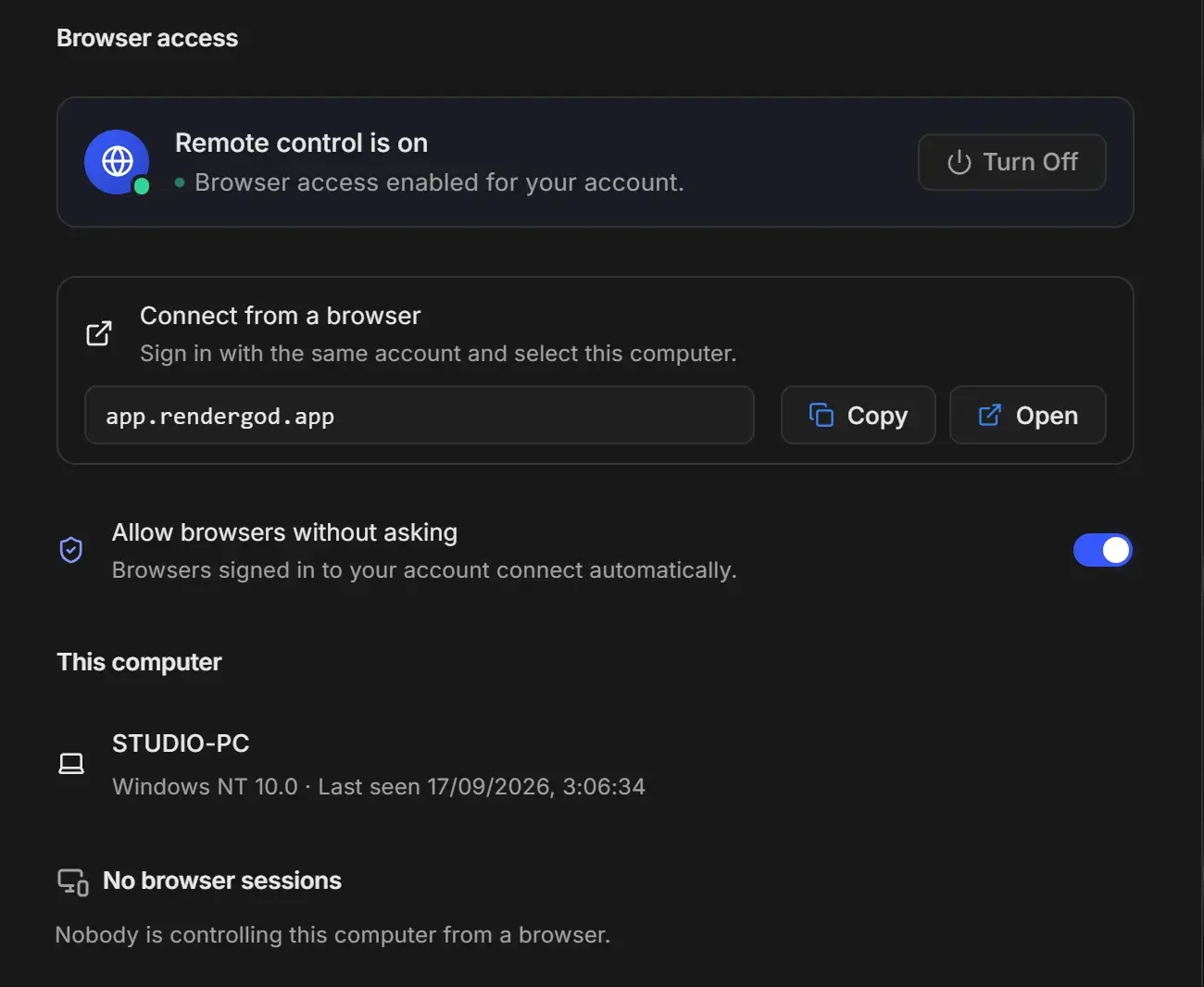
Click Turn On Remote Control. A toast confirms "Remote control is on".
Decide whether new browsers need your approval. Leave Allow browsers without asking off (recommended) to approve each new browser on this computer, or turn it on to let browsers signed in to your account connect automatically.
Optional: give the computer a clear name under This computer, so you can pick it easily in the browser.
The header's Remote Control button shows a green dot while remote control is on.
Name the computer
The name is what every browser shows in the list of your computers.
- Under This computer, click the current name.
- Type a new name, up to 64 characters, for example "Studio PC".
- Press Enter or click the check mark. Press Esc to cancel.

Get the address for your other device
In Connect from a browser, click Copy to copy app.rendergod.app, or Open to open it in this computer's browser. On a phone, type the address in any browser. Then follow Connect from another device.
If previews may not reach you away from home
When remote control is on, RenderGod checks whether preview images can reach browsers on other networks, such as a phone on mobile data. If there is a problem, a warning titled "Previews may not reach you away from home" explains the cause.
| Cause | What to do |
|---|---|
| Windows Firewall is blocking incoming video connections | Click Allow it through Windows Firewall and accept the Windows administrator prompt. A toast confirms "Windows Firewall updated". |
| The network blocks outgoing connections, or the router cannot open a port | RenderGod cannot change this. Previews still work on the same network; from outside, try another network or check the router settings. |
Job information and controls keep working either way. Only preview images are affected.
Turn remote control off
Click Turn Off. Every connected browser is disconnected immediately and this computer refuses commands. A toast confirms "Remote control is off".
On macOS
The steps are the same. There is no firewall button on macOS.