Connect to RenderGod From Another Device
Open app.rendergod.app on a phone, tablet or another computer, sign in, pick your rendering computer and control its render queue from the browser.
Once remote control is on, you can connect from another device: any phone, tablet or computer with a modern browser. Nothing needs to be installed on that device.
Connect
Open the address
In the browser, go to app.rendergod.app.
Sign in
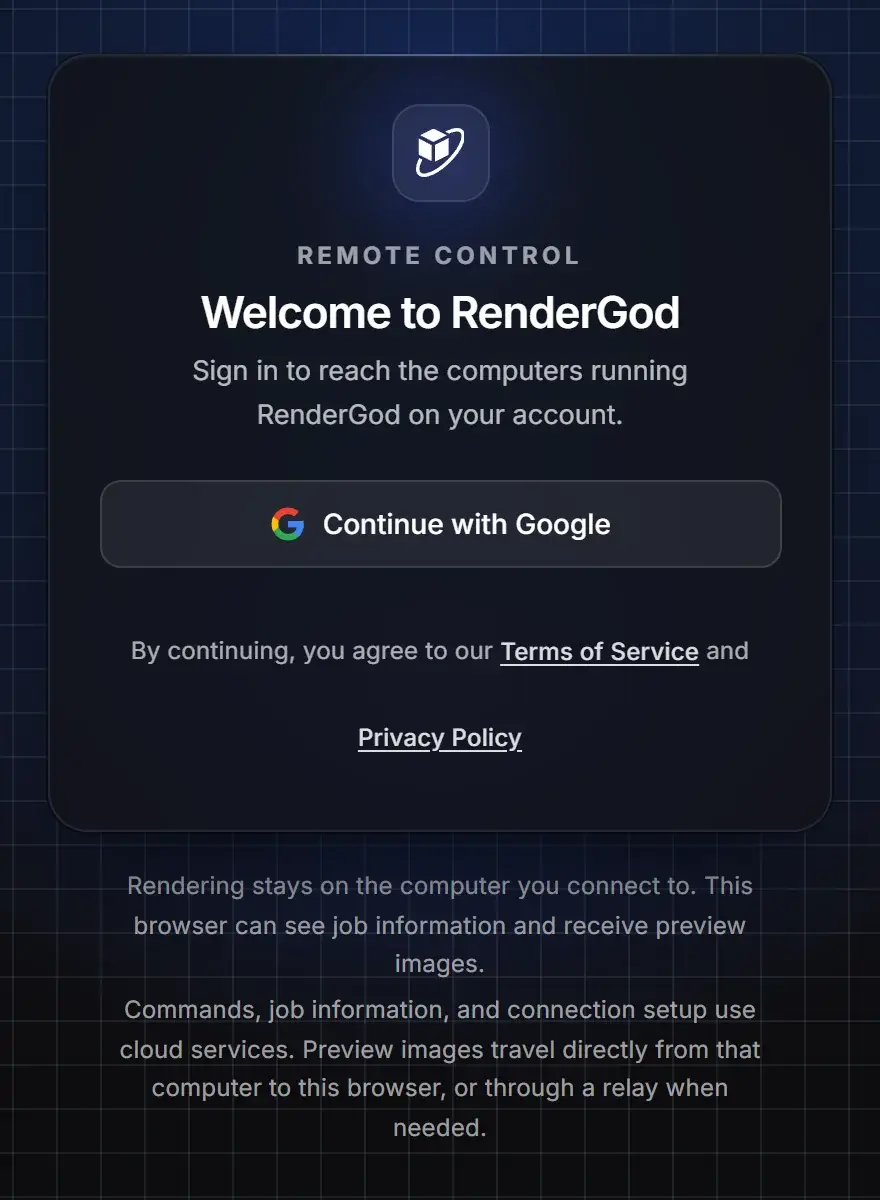
The page shows REMOTE CONTROL, "Welcome to RenderGod" and "Sign in to reach the computers running RenderGod on your account." Click Continue with Google and sign in with the same Google account you use in RenderGod on the rendering computer.
Pick your computer
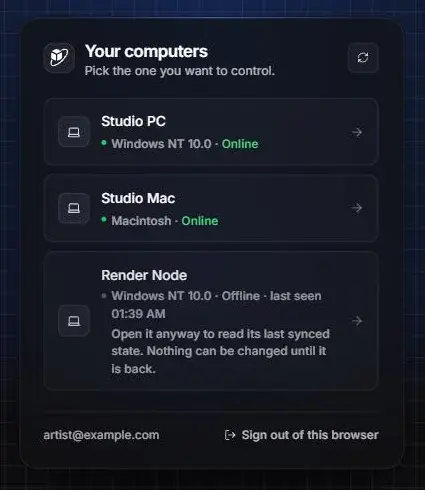
Under Your computers ("Pick the one you want to control."), click or tap the computer you want to control. The list refreshes by itself every few seconds, and the refresh button in the corner checks again right away.
Wait for approval if asked
If the computer asks before letting browsers in, the browser shows "Waiting for approval". Choose Always allow or Just this time on the computer. See Approve or deny browser access.
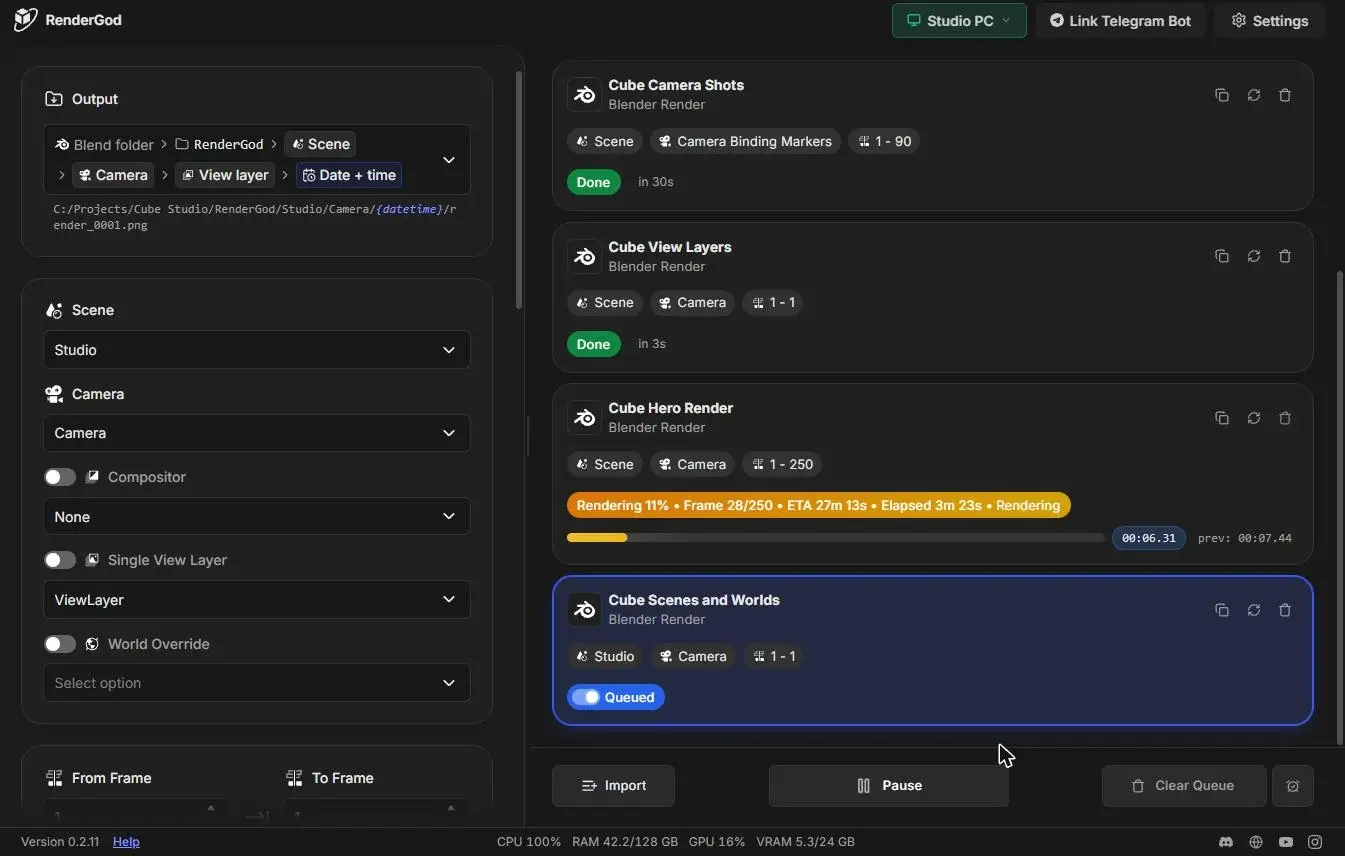
The RenderGod interface opens, driving that computer. The header shows a chip with the computer's name and a green computer icon, next to Link Telegram Bot and Settings. Below it you see the same render settings panel, queue and job cards as on the desktop, with live progress such as "Rendering 11% • Frame 28/250 • ETA 27m 13s". The Import, Pause, Clear Queue and When Done buttons sit under the queue, and the footer shows the CPU, RAM, GPU and VRAM load of the rendering computer.
Computer states in the list
Each row shows the computer name, then its operating system (for example Windows NT 10.0 or Macintosh) and its state.
| State | What it means | What you can do |
|---|---|---|
| Online (green) | RenderGod is running with remote control on | Open it and control it |
| Remote control off | RenderGod is running but remote control is off | Turn it on in Settings > Remote Control on that computer |
| Not responding since a time | Still signed in but stopped answering | Open it to read its last synced state |
| Offline · last seen a time (grey) | The computer or RenderGod is off. The row says "Open it anyway to read its last synced state. Nothing can be changed until it is back." | Open it to read its last synced state |
If the list says "No computers yet", open RenderGod on your PC and sign in with this same account. It appears by itself. The signed-in account and Sign out of this browser are at the bottom of the list.
Using RenderGod in the browser
- The interface matches the computer you control, including its operating system. A phone controlling a Mac shows Mac wording.
- The footer shows the load of the rendering computer, not of your phone.
- Previews arrive as preview images. Full-resolution frames and finished-video playback stay on the computer. See What you cannot do from a browser.
- Reloading the page returns to the same computer. A new tab starts at the computer list.
- To change text size on a phone or small screen, use the browser's zoom.
Switch to another computer
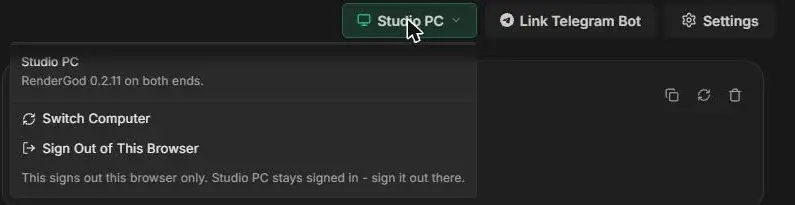
Click the computer name in the header. The menu shows the computer name and whether both ends run the same RenderGod version, for example "RenderGod 0.2.11 on both ends."
- Switch Computer returns to the computer list.
- Sign Out of This Browser signs out only this browser. The computer stays signed in; to sign it out, do it at the computer.
If the version differs
If the computer runs a different RenderGod version than the web page, a warning says "Some controls may not line up." Update RenderGod on the computer. See Update RenderGod.
When the connection drops
| What you see | What it means |
|---|---|
| "Reconnecting to your computer..." at the bottom | The connection was interrupted. Short blips show nothing at all. |
| Back at the computer list after about a minute | The computer stayed unreachable. The browser reconnects by itself when the computer returns. |
| "Read-only - your computer is offline." | You opened an offline computer. See Open an offline computer. |
| "Connecting to your computer" on a preview | The preview link is still starting. If it keeps failing, check the firewall warning in Settings > Remote Control on the computer. |
Open an offline computer
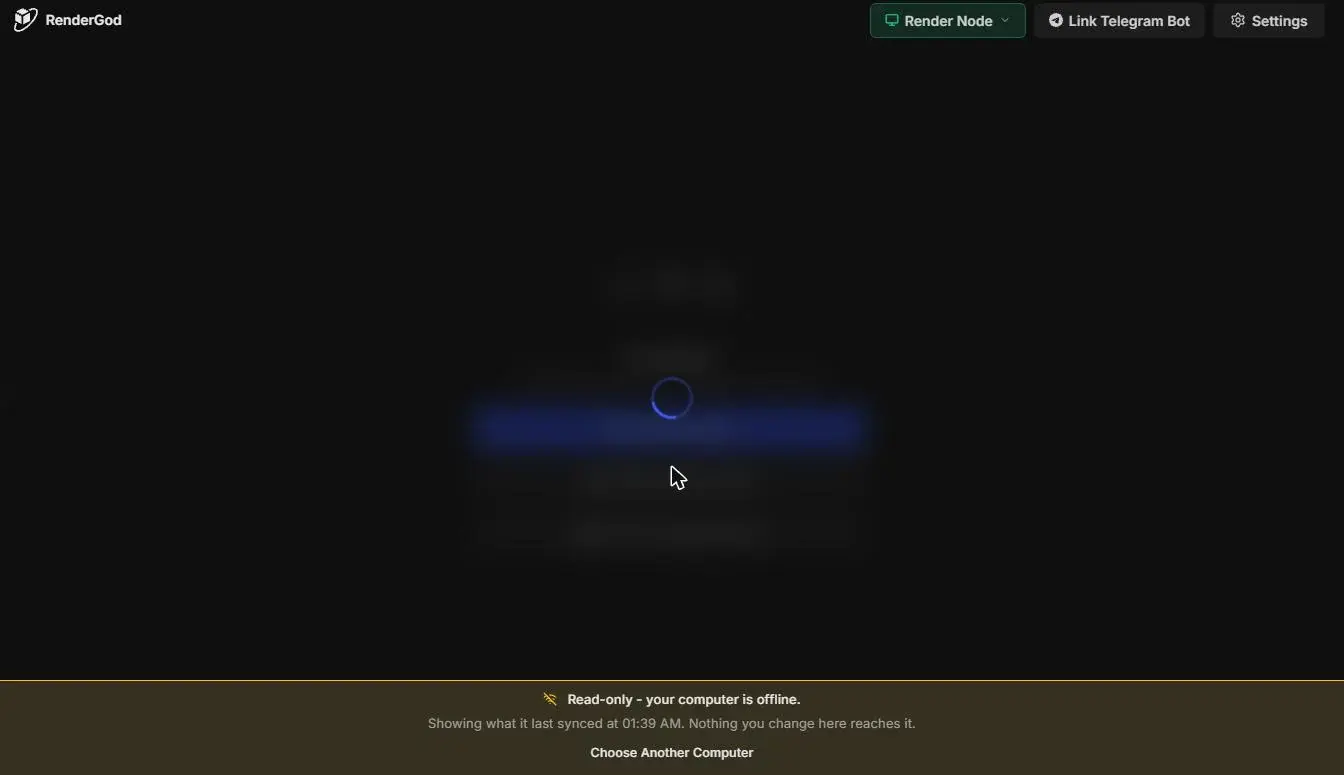
When you open a computer that is offline, a strip at the bottom says "Read-only - your computer is offline." and "Showing what it last synced at" a time. "Nothing you change here reaches it." The header chip still shows the computer's name. Click Choose Another Computer to go back to the list.
Connection errors
| Message | Fix |
|---|---|
| "Remote control is switched off on that computer" | Turn it on in RenderGod's settings on that computer. |
| "That computer did not answer." | It may have just gone offline. Try again in a moment. |
| "Your sign-in expired. Sign in again." | Sign in again in the browser. |