Create Your Telegram Bot With BotFather
Create a private Telegram bot for RenderGod with BotFather step by step, choose its name and username, and copy the bot token you need to connect it.
RenderGod sends notifications through your own Telegram bot. You create the bot once with BotFather, Telegram's official bot for making bots. It takes about a minute and is free. You need the Telegram app on your phone or computer.
Before you start
- A Telegram account.
- RenderGod open on the rendering computer, signed in, with Settings > Telegram Bot open. Click Link Telegram Account to see the setup steps next to you while you work in Telegram.
Create the bot
Open BotFather
In Telegram, search for @BotFather and open the chat. Check that it has the blue verified mark. In RenderGod's Link Telegram Account dialog you can click Open @BotFather instead.
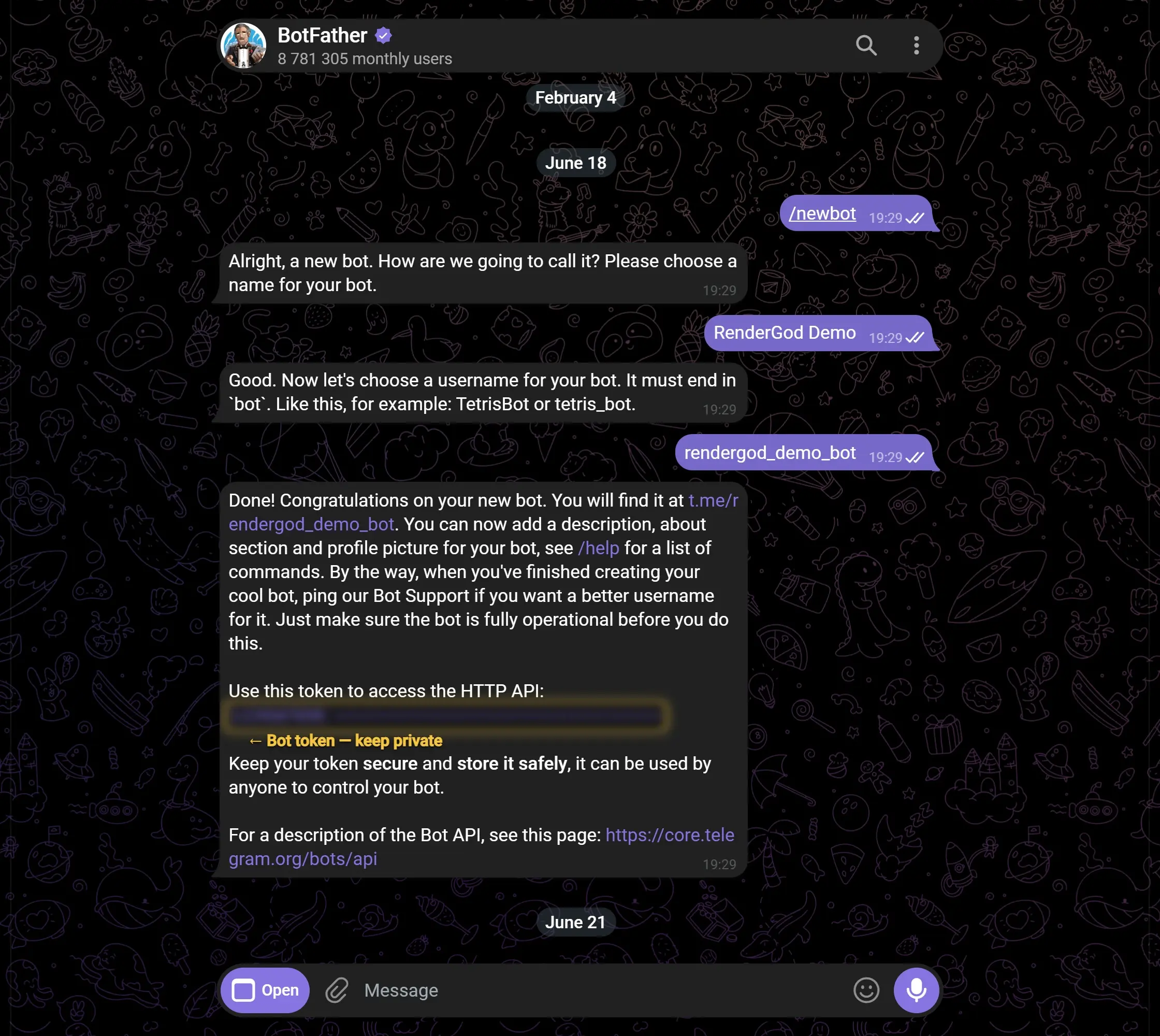
Send /newbot
Send the message /newbot. BotFather asks for a name.
Send a name
The name is what you see at the top of the chat. It can contain spaces, for example My Render Bot. The RenderGod dialog suggests one you can copy.
Send a username
The username is the bot's unique handle. It must end in bot, for example MyRenderBot or my_studio_render_bot. If BotFather says it is taken, add a number and try again.
Copy the token
BotFather replies with a link to your bot, such as t.me/MyRenderBot, and a token under "Use this token to access the HTTP API:". A token looks like this:
Real tokens are digits, a colon, then 30 to 50 letters, digits, _ or -. Copy the whole token.
/revoke to BotFather to get a new token, then connect the bot again with the new one.Next step
Paste the token into RenderGod and link your chat: Connect the bot to RenderGod.
Common questions
Can several computers share one bot?
Create a separate bot for each rendering computer, so every message and command clearly belongs to one machine.