RenderGod Blender Add-on Troubleshooting
Fix a missing Send to RenderGod button, RenderGod not found in Blender, failed add-on installs and sends that do not reach the queue, with step by step checks.
Most problems with the RenderGod Blender add-on come from Blender not being restarted, RenderGod never having been opened, or a file that was never saved. Find your symptom below.
The Send to RenderGod button does not appear
- Restart Blender. A newly installed add-on only loads after a restart.
- Check your Blender version is 4.2 or newer.
- In Settings > Install Blender Addon, check that version's badge. If it is Addon missing, install again.
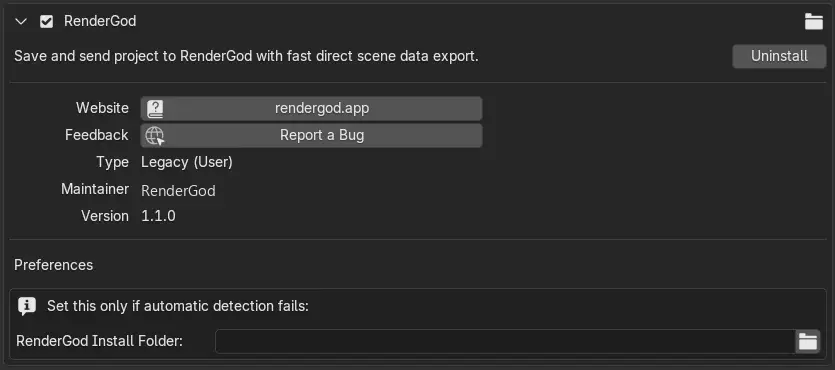
- In Blender, open Edit > Preferences > Add-ons, search for "RenderGod" and make sure the add-on is ticked.
- Look in the right place: press N in the 3D Viewport and click the RenderGod tab, or open the Render menu.
If the add-on shows as installed in RenderGod but is not enabled in Blender, Blender may have saved its own preferences over the change when you closed it. Install again and use Restart Blender in RenderGod instead of quitting Blender yourself.
"RenderGod not found." in the sidebar
The add-on is installed but cannot locate RenderGod. The RenderGod tab shows "RenderGod not found." with a folder field and Reload RenderGod.
- Open RenderGod once on this computer. It records its location the first time it runs.
- In Blender, click Reload RenderGod.
- If it still fails, set the folder yourself: in the Install Folder field (or Edit > Preferences > Add-ons > RenderGod > RenderGod Install Folder), choose the folder RenderGod is installed in. On macOS choose RenderGod.app.
- Click Reload RenderGod. "RenderGod loaded successfully!" confirms it.
If the message mentions a file that is missing from RenderGod's folder, reinstall RenderGod.
"Couldn't Send to RenderGod"
| Reason shown | Fix |
|---|---|
| "Save this project once before sending it." | Save the file with File > Save As, then Retry. |
| "Couldn't export this scene's data." | Open Window > Toggle System Console (Windows) to read the error, fix the scene, then Retry. |
| "Couldn't find RenderGod on this computer." | Follow "RenderGod not found" above. |
The send worked but no job appeared
- Check the bottom of the queue: sent files are added last.
- If RenderGod was closed, give it a moment to start.
- Import the file by hand to see whether RenderGod reports a problem with it. See Import .blend files.
Automatic install failed
The "Couldn't install the add-on" panel lists each failed version and why.
| Reason | Fix |
|---|---|
| Blender reported no usable add-ons folder, or RenderGod could not write the file | Check you can write to your Blender user folder, then Retry |
| Blender could not enable the add-on, or could not save its preferences | Close every Blender window, then Retry |
| Not found, or not a registered Blender installation | Run Auto Scan in the Blender Version Manager and try again |
| Blender exited without reporting a result | Start that Blender once by itself to check it opens, then Retry |
If a version keeps failing, use Manual Download and install the add-on by hand.
The add-on is installed into Blender's user add-ons folder:
| System | Folder |
|---|---|
| Windows | %APPDATA%\Blender Foundation\Blender\<version>\scripts\addons |
| macOS | ~/Library/Application Support/Blender/<version>/scripts/addons |
"No Blender installation found" when restarting Blender
RenderGod has no Blender to relaunch. Add one in the Blender Version Manager, or start Blender yourself.