Update or Reinstall the RenderGod Blender Add-on
Check which Blender versions have an outdated or missing RenderGod add-on, update them in one click after a RenderGod update, or remove the add-on from Blender.
Update the RenderGod Blender add-on when RenderGod ships a newer version of it, or reinstall it when it stops working or you add a new Blender version. Each RenderGod release includes its matching add-on.
Check the add-on status
Open Settings > Install Blender Addon. Each Blender version shows a status badge:
| Badge | What to do |
|---|---|
| Addon v… (green) | Nothing. It matches this RenderGod. |
| Addon outdated (v…) (amber) | Install again to update. Hover to see the installed and bundled versions. |
| Addon (version unknown) (amber) | Install again to be sure. |
| Addon missing | Install it, for example on a Blender version you added recently. |
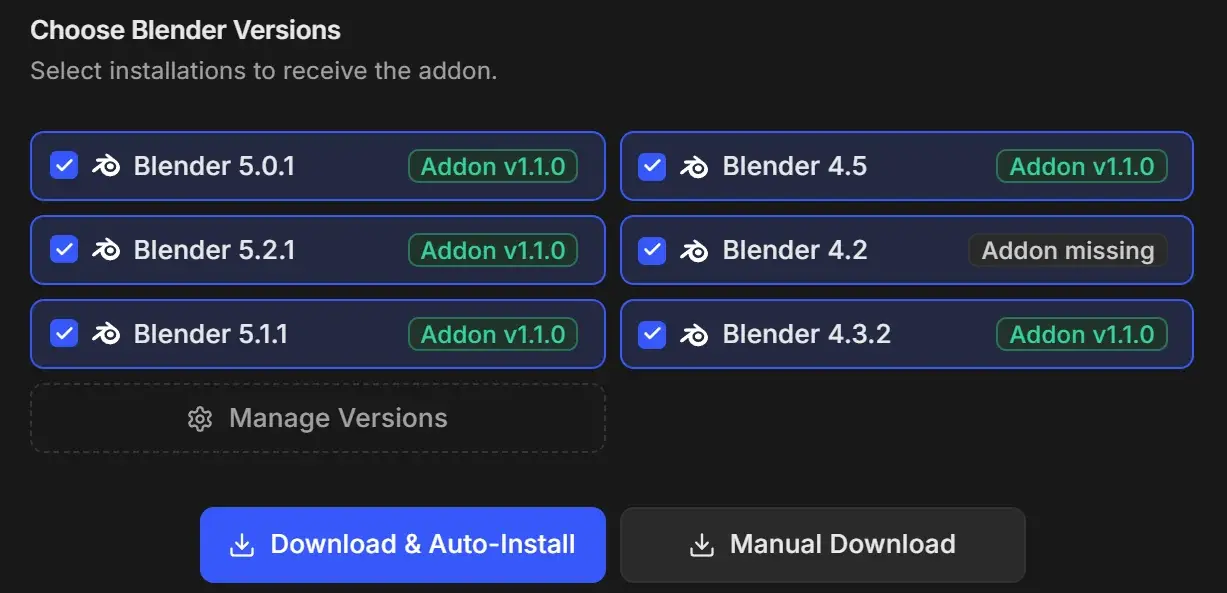
Update or reinstall
Save your work in Blender.
In Settings > Install Blender Addon, select the versions to update. Deselect versions that are already green if you want to skip them.
Click Download & Auto-Install. The new add-on replaces the old one.
Click Restart Blender (Required), then Confirm Restart Blender (Click Again).
Blender only loads the new add-on after it restarts.
If you installed the add-on manually, repeat the manual install with a fresh Manual Download.
Add a new Blender version
After installing a new Blender, add it in the Blender Version Manager with Auto Scan. It then appears in Install Blender Addon as Addon missing, ready to install.
Remove the add-on
In Blender, open Edit > Preferences > Add-ons, search for "RenderGod", expand the entry and click Uninstall. To stop the reminder in RenderGod, turn off Show RenderGod Addon popup when queue is empty.