Settings & System
Theme Settings - Customizing RenderGod Appearance
Customize RenderGod's appearance with light mode, dark mode, or system-based theme selection. Choose the theme that works best for your workflow and preferences
Theme Settings - Customizing RenderGod Appearance
Customize RenderGod's appearance with light mode, dark mode, or system-based theme selection. Choose the theme that works best for your workflow and preferences.
Overview
RenderGod supports multiple theme options to match your preferences and working environment. You can choose between light mode, dark mode, or let RenderGod follow your system theme.

Accessing Theme Settings
- Click the Settings button (gear icon) in the top-right corner
- Navigate to the "Theme Settings" tab
- You'll see theme selection options
Theme Options
System Mode (Default)
- Automatic detection: RenderGod detects your Windows theme setting
- Follows system: Matches your system's light/dark mode preference
- Automatic updates: Changes when you change your system theme
- No manual selection: You don't need to choose - it's automatic
Light Mode
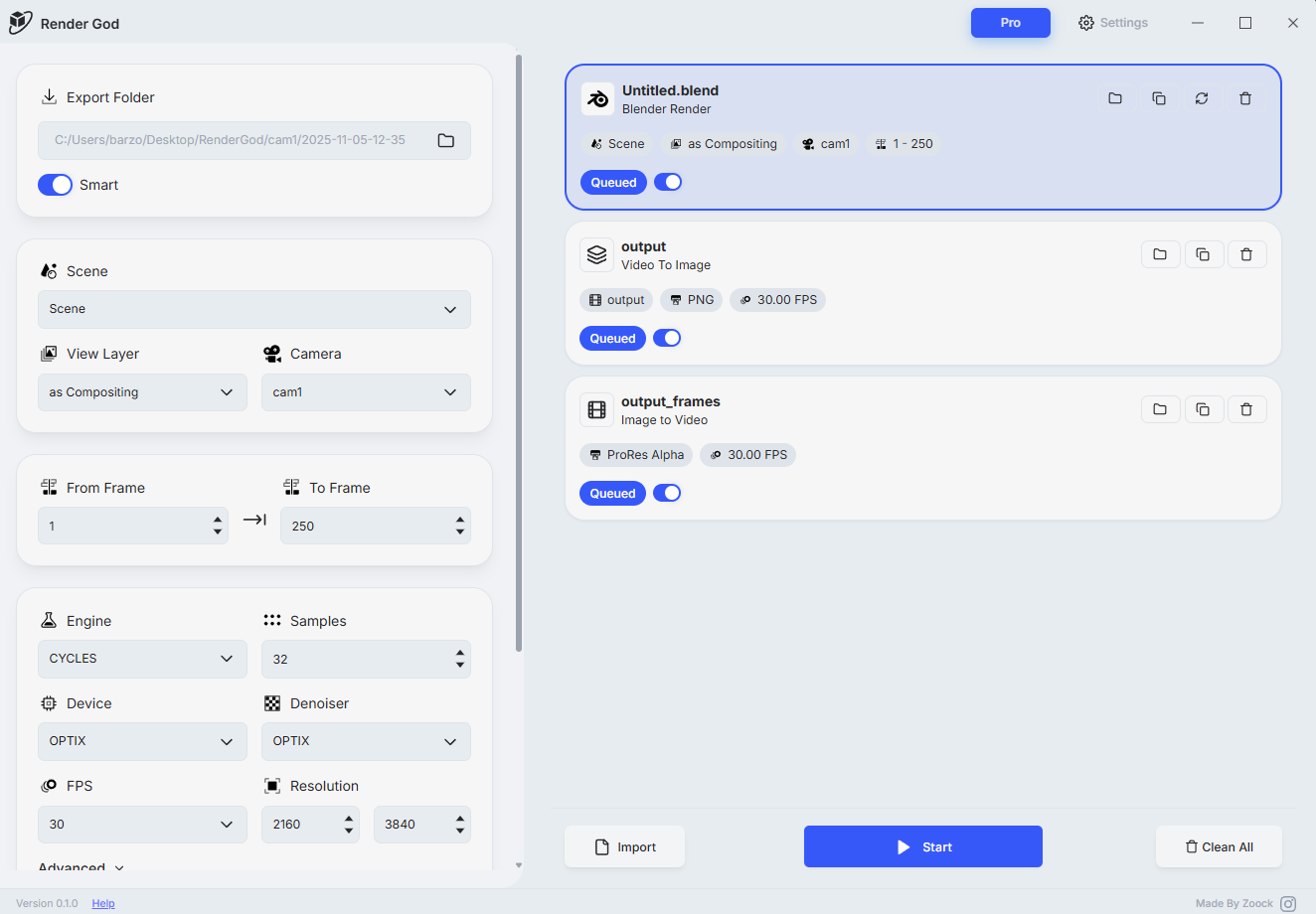
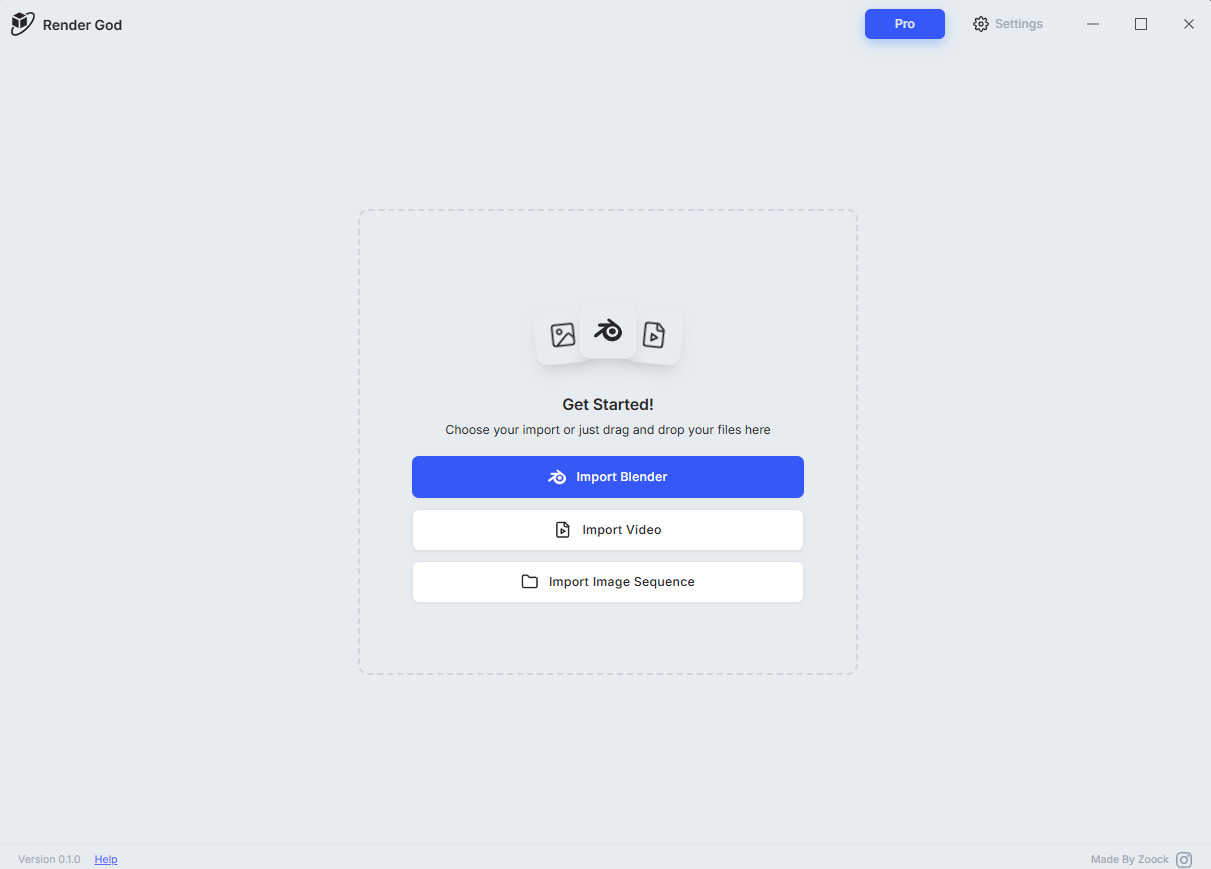
- Bright interface: Light background with dark text
- High contrast: Good contrast for readability
- Daytime friendly: Easy on the eyes in bright environments
- Professional appearance: Clean, bright professional look
Best for:
- Daytime work
- Bright office environments
- Users who prefer light interfaces
- Situations where you need maximum brightness
Dark Mode
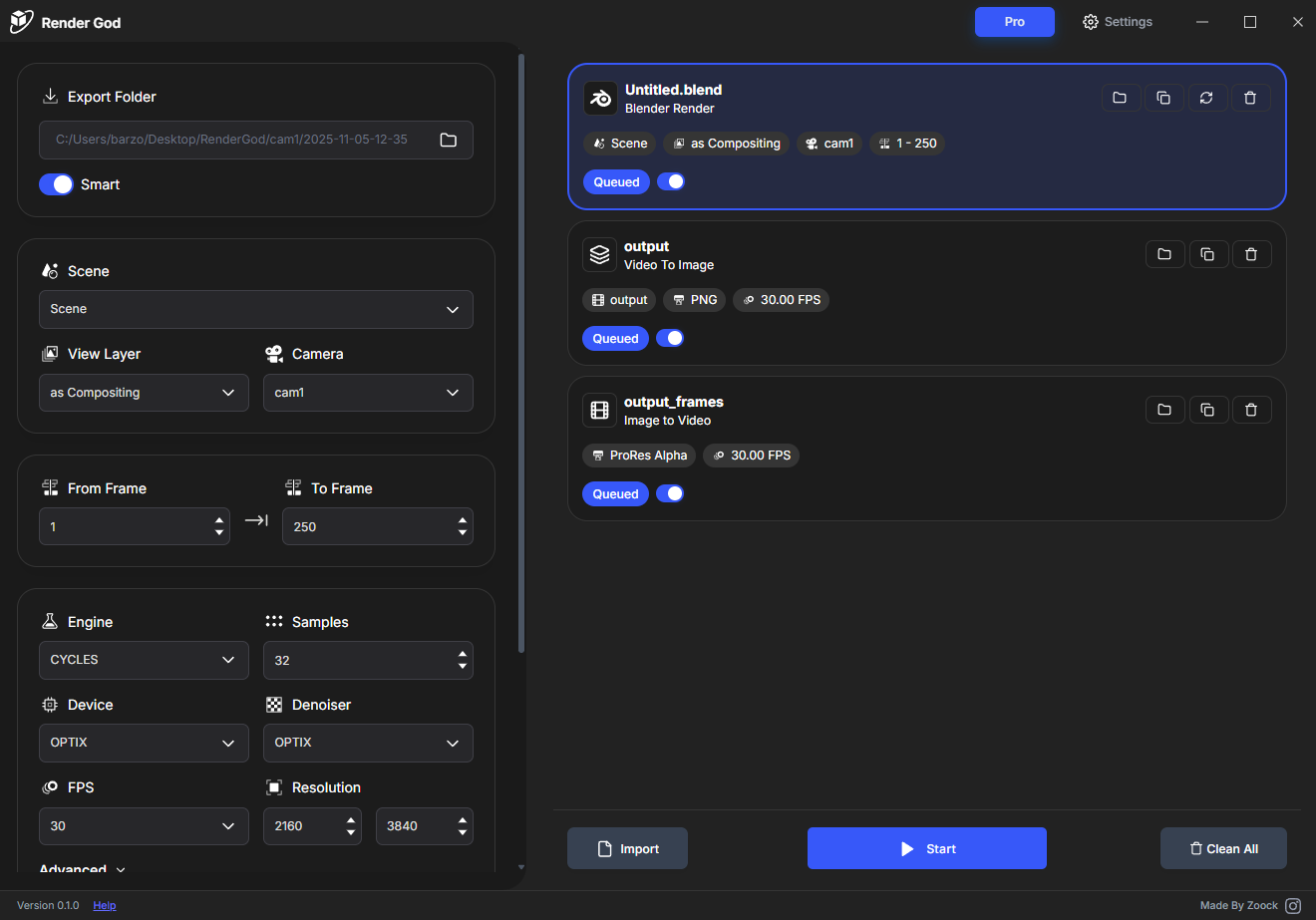
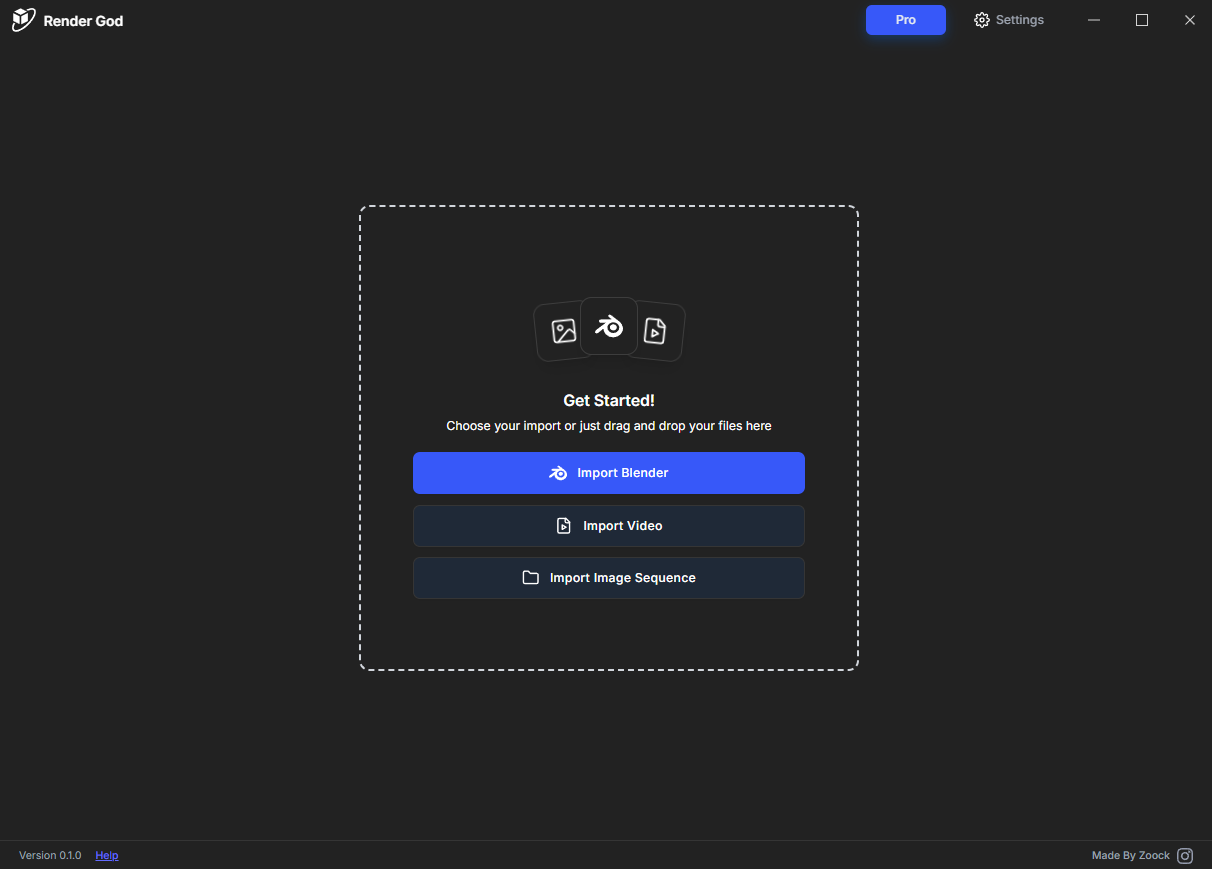
- Dark interface: Dark background with light text
- Eye strain reduction: Easier on the eyes, especially in low light
- Modern appearance: Contemporary dark theme design
- Battery saving: Can save battery on OLED displays
Best for:
- Evening/night work
- Low light environments
- Long rendering sessions
- Users who prefer dark interfaces
- Reducing eye strain
Selecting a Theme
Choosing System Mode
- Go to Settings > Theme Settings
- Select "System mode"
- RenderGod will automatically match your Windows theme
- Theme updates automatically when Windows theme changes
Choosing Light Mode
- Go to Settings > Theme Settings
- Select "Light mode"
- Interface immediately switches to light theme
- Stays in light mode regardless of system settings
Choosing Dark Mode
- Go to Settings > Theme Settings
- Select "Dark mode"
- Interface immediately switches to dark theme
- Stays in dark mode regardless of system settings
Theme Features
Consistent Appearance
- All windows: Theme applies to all RenderGod windows and dialogs
- Consistent colors: Color scheme is consistent throughout
- Professional look: Clean, professional appearance
- Smooth transitions: Theme changes are smooth and instant
Visual Comfort
- Eye strain reduction: Dark mode reduces eye strain
- Readability: Both themes maintain excellent readability
- Contrast: Appropriate contrast for comfortable viewing
- Color harmony: Colors are carefully chosen for harmony
Best Practices
Choosing the Right Theme
- Environment: Match theme to your working environment
- Time of day: Consider time of day when choosing theme
- Personal preference: Choose what feels comfortable to you
- Task type: Different themes may work better for different tasks
System Mode Benefits
- Automatic: No need to manually change themes
- Consistent: Matches your system-wide theme
- Convenient: Changes automatically with system settings
- Simple: Set it and forget it
Manual Theme Selection
- Consistency: Keeps RenderGod theme constant regardless of system
- Preference: Use your preferred theme always
- Control: Full control over appearance
- Stability: Theme doesn't change unexpectedly
Theme Switching
Changing Themes
You can change themes at any time:
- Go to Settings > Theme Settings
- Select a different theme option
- Interface updates immediately
- No restart required
Theme Persistence
- Saves preference: Your theme choice is saved
- Remembers setting: RenderGod remembers your preference
- Applies on startup: Theme applies when you start RenderGod
- Consistent experience: Same theme every time you use RenderGod
Troubleshooting
Theme Not Applying
- Check settings: Verify theme is selected correctly
- Restart RenderGod: Sometimes a restart helps
- Check system: If using system mode, check Windows theme
- Update RenderGod: Ensure you're using the latest version
Theme Looks Wrong
- Check system theme: If using system mode, verify Windows theme
- Try different theme: Switch to a different theme to test
- Restart application: Restart RenderGod to refresh theme
- Report issue: If problem persists, it may be a bug
Related Features
- Badge Display: Badges adapt to your theme
- Interface Customization: Theme is part of overall customization
- User Experience: Theme affects overall user experience
Your theme is now configured for comfortable viewing! Choose the theme that works best for you.

© 2026 RenderGod. All rights reserved.