Action When Done Settings
Configure what RenderGod does automatically after renders complete. Set up automatic shutdown, sleep mode, or sound notifications to streamline your workflow.
Action When Done Settings
Configure what RenderGod does automatically after renders complete. Set up automatic shutdown, sleep mode, or sound notifications to streamline your workflow.
Overview
The "Action When Done" settings allow you to automate actions after RenderGod finishes processing your render queue. This is perfect for overnight renders or unattended batch processing.
Available Actions
RenderGod can automatically perform these actions when the queue completes:
- Shutdown: Turn off your computer after rendering
- Sleep: Put your computer to sleep after rendering
- Play Sound: Play a notification sound when rendering completes
- Do Nothing: No automatic action (default)
Accessing Action When Done Settings
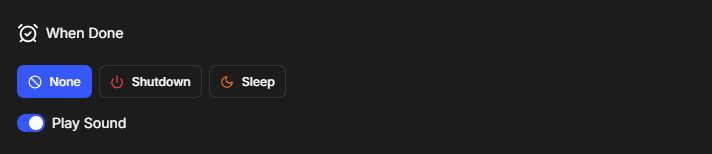
- Click the Settings button (gear icon) in the top-right corner
- Navigate to the "When Done" tab
- You'll see options for shutdown, sleep, and sound notifications
Shutdown After Render
Enabling Shutdown
- In the "When Done" tab, find the "Shutdown" option
- Enable the shutdown toggle or select shutdown from the dropdown
- When the render queue completes, your computer will automatically shut down
When Shutdown Occurs
- Queue completion: Shutdown happens after all jobs in the queue finish
- No active jobs: Ensures no jobs are still processing
- Safe shutdown: Uses Windows safe shutdown procedure
- All work saved: Make sure all your work is saved before shutdown
Warning: Shutdown will turn off your computer. Make sure all your work is saved and you don't need the computer for anything else.
Use Cases
- Overnight renders: Let renders run overnight and computer shuts down automatically
- Batch processing: Process large batches and shut down when done
- Energy saving: Save power by shutting down after work completes
Sleep After Render
Enabling Sleep
- In the "When Done" tab, find the "Sleep" option
- Enable the sleep toggle or select sleep from the dropdown
- When the render queue completes, your computer will enter sleep mode
When Sleep Occurs
- Queue completion: Sleep happens after all jobs finish
- Low power mode: Computer enters low-power sleep state
- Quick wake: Easy to wake up when you return
- Work preserved: All your work and applications remain open
Note: Sleep mode preserves your work and allows quick resumption. It's safer than shutdown if you want to keep your session active.
Use Cases
- Overnight renders: Let renders run and computer sleeps when done
- Quick return: Easy to wake up and continue working
- Power saving: Save power while keeping session active
Sound Notification
Enabling Sound
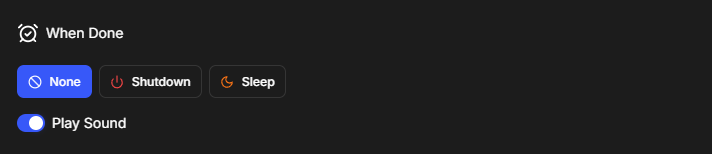
- In the "When Done" tab, find the "Play Sound" option
- Enable the toggle to play a sound when rendering completes
- You'll hear a notification sound when the queue finishes
When Sound Plays
- Queue completion: Sound plays when all jobs finish
- Audio notification: Audible alert that work is complete
- System sound: Uses your system's default notification sound
Disabling Sound
- Go to "When Done" settings
- Disable the "Play Sound" toggle
- No sound will play when rendering completes
Use Cases
- Awareness: Know immediately when renders finish
- Multi-tasking: Get notified while working on other things
- Remote monitoring: Hear when work completes even if away from computer
Combining Actions
You can combine multiple actions:
- Sound + Shutdown: Play sound, then shut down
- Sound + Sleep: Play sound, then sleep
- Sound only: Just play sound without shutdown/sleep
Best Practices
Before Enabling Shutdown/Sleep
- Save all work: Ensure all files are saved
- Close applications: Close applications that might lose data
- Check queue: Verify all jobs you want are in the queue
- Test first: Test with a small job first to ensure it works
Safety Considerations
- Unsaved work: Make sure all work is saved before automatic actions
- Other users: Don't enable if others are using the computer
- Network renders: Ensure no network dependencies are active
- Backup: Consider backing up important work before long renders
Monitoring
- Check progress: Monitor renders before leaving
- Verify settings: Double-check action settings before leaving
- Test sound: Ensure sound works if using notifications
- Remote access: Use Telegram bot to check status remotely
Troubleshooting
Shutdown Not Working
- Check permissions: Ensure RenderGod has shutdown permissions
- Check Windows settings: Verify Windows allows automatic shutdown
- Try sleep: Use sleep mode as an alternative
- Manual shutdown: You can always shut down manually
Sleep Not Working
- Check power settings: Verify Windows sleep settings
- Check permissions: Ensure RenderGod can control sleep
- Try shutdown: Use shutdown as an alternative
- Manual sleep: You can always sleep manually
Sound Not Playing
- Check volume: Ensure system volume is not muted
- Check sound device: Verify audio device is working
- System sounds: Ensure Windows system sounds are enabled
- Test sound: Test system sounds separately
Related Features
- Uncrash Render: Protects renders from crashes
- Telegram Bot: Monitor renders remotely
- Queue Management: Manage what completes before actions trigger
Your Action When Done settings are now configured for automated workflow!

© 2026 RenderGod. All rights reserved.