Telegram Bot Integration and Setup
Learn how to connect RenderGod to Telegram for remote monitoring and control of your render queue. The Telegram bot allows you to check render status, control t
Telegram Bot Integration and Setup
Learn how to connect RenderGod to Telegram for remote monitoring and control of your render queue. The Telegram bot allows you to check render status, control the queue, and receive notifications from anywhere.
Overview
The RenderGod Telegram Bot provides remote access to your render queue, allowing you to:
- Monitor renders: Check the status of your render jobs remotely
- Control the queue: Start, stop, and manage renders from your phone
- Receive notifications: Get alerts when renders complete or encounter issues
- Check progress: View render progress and estimated completion times
- Execute commands: Send commands to control RenderGod remotely
Prerequisites
Before setting up the Telegram bot:
- Telegram account: You need a Telegram account (download from telegram.org)
- Telegram app: Install Telegram on your phone or computer
- RenderGod running: RenderGod must be running on your computer
- Internet connection: Both devices need internet connectivity
Enabling the Telegram Bot
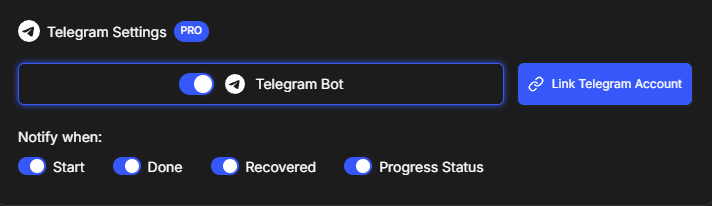
Step 1: Access Telegram Settings
- Click the Settings button (gear icon) in RenderGod
- Navigate to the "Telegram Settings" tab
- Find the main Telegram Bot toggle at the top
Step 2: Enable the Bot
- Enable the toggle to activate the Telegram bot feature
- Immediately after enabling, a "Link Telegram Account" window will open
- This window contains instructions for linking your Telegram account
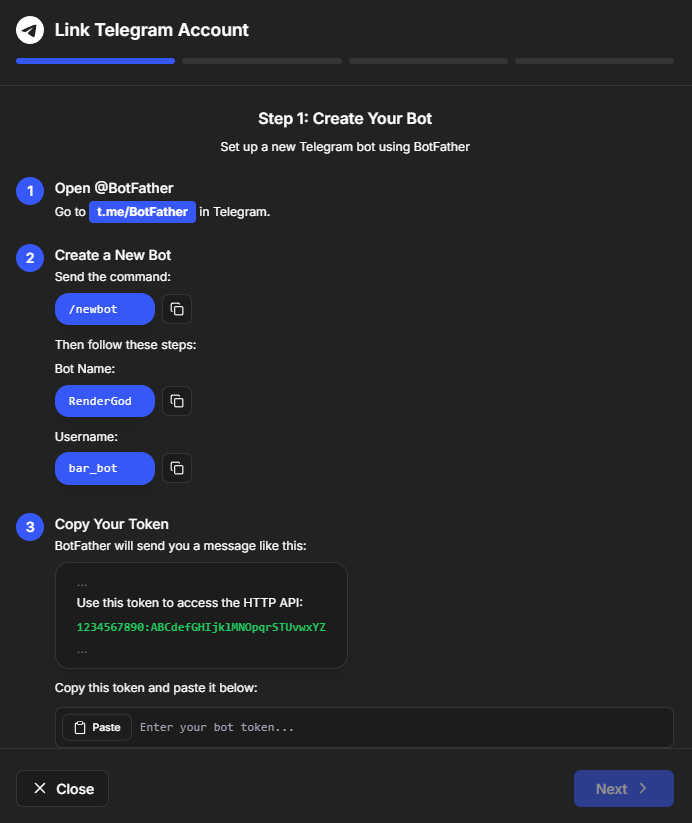
Linking Your Telegram Account
Follow these steps to connect your Telegram account to RenderGod:
Step 1: Read the Instructions
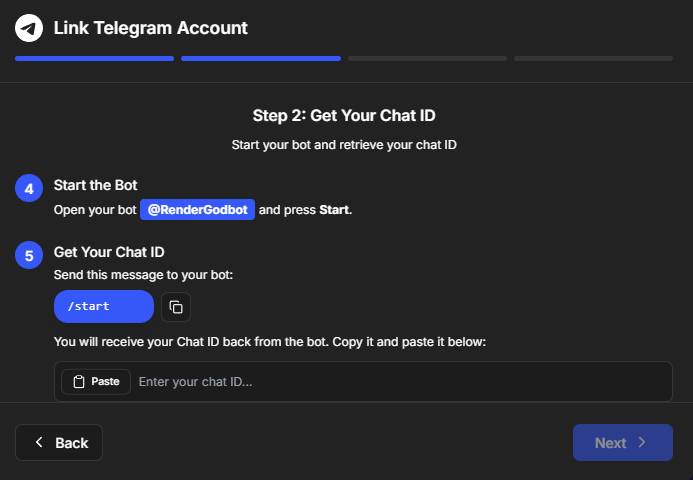
The Link Telegram Account window shows step-by-step instructions:
- Read the instructions carefully - They explain the linking process
- Note the bot username - You'll need to message this bot on Telegram
- Prepare your Telegram app - Have Telegram open and ready
Step 2: Open Telegram
- Open Telegram on your phone or computer
- Search for the RenderGod bot - Use the bot username shown in the instructions
- Start a chat with the bot
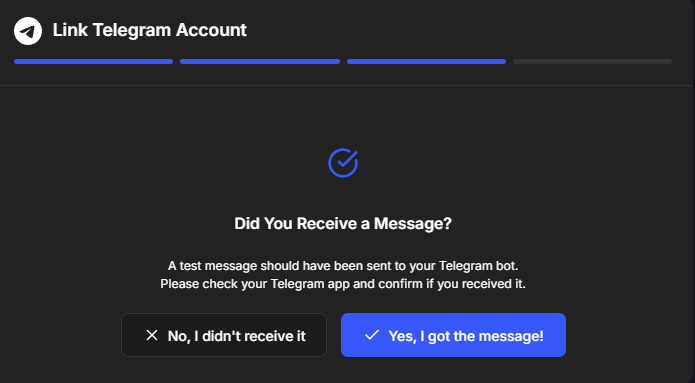
Step 3: Send the Linking Code
- In the Link Telegram Account window, you'll see a linking code
- Copy the code or note it down
- Go to Telegram and send this code to the RenderGod bot
- The bot will verify the code and link your account
Step 4: Complete the Link
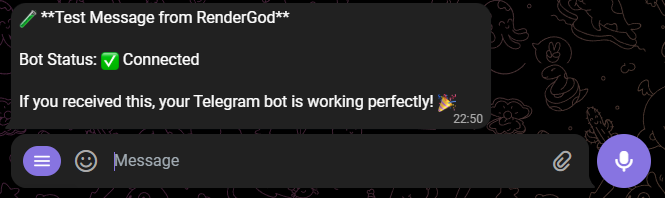
- After sending the code, the bot confirms the link
- Return to RenderGod - The Link Telegram Account window updates
- You should see a "Successfully linked!" message
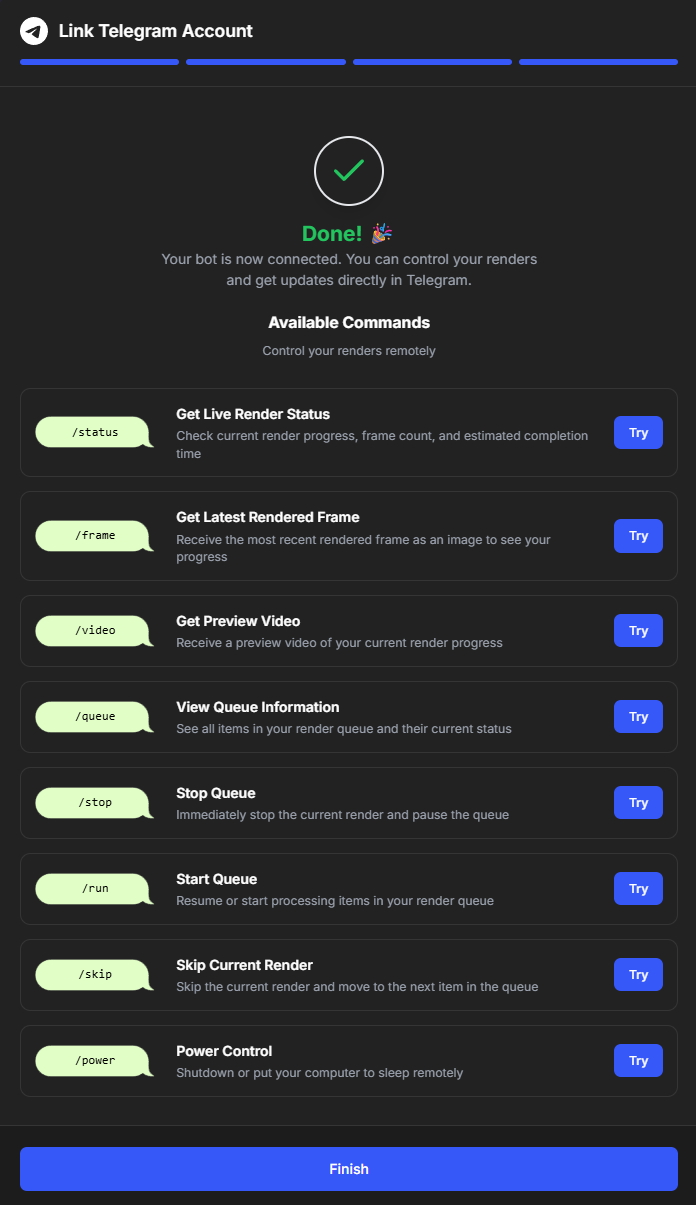
- The window may show example commands to test the connection
Using the Telegram Bot
Once linked, you can use the bot to control RenderGod remotely:
Available Commands
The Telegram bot supports various commands (refer to the commands guide shown after linking):
Status Commands
- Check queue status: See what's in your render queue
- View render progress: Check progress of active renders
- Get render information: View details about specific jobs
Control Commands
- Start rendering: Begin processing the queue
- Stop rendering: Pause or stop active renders
- Skip job: Skip a specific job in the queue
- Clear queue: Remove all jobs from the queue
Information Commands
- Get system info: Check system resources and status
- View settings: See current RenderGod configuration
- Help: Get a list of all available commands
Receiving Notifications
The bot can send you notifications about:
- Render completion: When a render job finishes
- Queue updates: When jobs are added or removed
- Error alerts: When renders encounter problems
- Progress updates: Periodic updates on render progress
Telegram Bot Features
Remote Monitoring
- Check anytime: Monitor your renders from anywhere
- No need to be at computer: Control RenderGod remotely
- Real-time updates: Get current status instantly
Convenience
- Mobile access: Control from your phone
- Quick commands: Execute actions with simple messages
- Notification system: Stay informed automatically
Security
- Secure linking: Uses secure codes for account linking
- Private bot: Only you can control your RenderGod instance
- Safe commands: All commands are verified before execution
Best Practices
Setting Up
- Keep Telegram open: Keep the bot chat open for easy access
- Test commands: Try a few commands to familiarize yourself
- Save bot contact: Add the bot to your Telegram contacts for quick access
Using Remotely
- Monitor regularly: Check render status periodically
- Use notifications: Enable notifications for important events
- Be patient: Some commands may take a moment to process
Troubleshooting
Bot Not Responding
- Check RenderGod: Ensure RenderGod is running
- Verify link: Check that your account is properly linked
- Internet connection: Ensure both devices have internet
- Restart bot: Disable and re-enable the Telegram bot in settings
Commands Not Working
- Check syntax: Verify you're using the correct command format
- Verify permissions: Ensure the bot has proper access
- Restart RenderGod: Sometimes a restart resolves issues
Linking Failed
- Check code: Ensure you entered the linking code correctly
- Try again: Generate a new linking code and try again
- Check bot: Ensure you're messaging the correct bot
- Time limit: Linking codes may expire - generate a new one
Disabling the Telegram Bot
If you need to disable the bot:
- Go to Settings > Telegram Settings
- Disable the toggle to turn off the bot
- Your account remains linked but the bot won't respond
- Re-enable anytime to restore functionality
Related Features
- Account Management: Sign in to enable cloud features
- Queue Management: Manage your render queue locally
- Action When Done: Configure automatic actions after renders complete
Your Telegram bot is now set up and ready for remote monitoring and control!

© 2026 RenderGod. All rights reserved.