Account Management and Authentication
Learn how to sign in to RenderGod with your Google account and manage your account settings. Account authentication enables cloud features and sync capabilities
Account Management and Authentication
Learn how to sign in to RenderGod with your Google account and manage your account settings. Account authentication enables cloud features and sync capabilities.3
Overview
RenderGod supports Google account authentication, allowing you to sign in and access cloud-based features. Signing in enables features like:
-
Cloud sync: Sync settings across devices
-
Remote monitoring: Access your renders from anywhere
-
Account features: Access to account-specific functionality
-
Future features: Enable upcoming cloud-based capabilities
Signing In
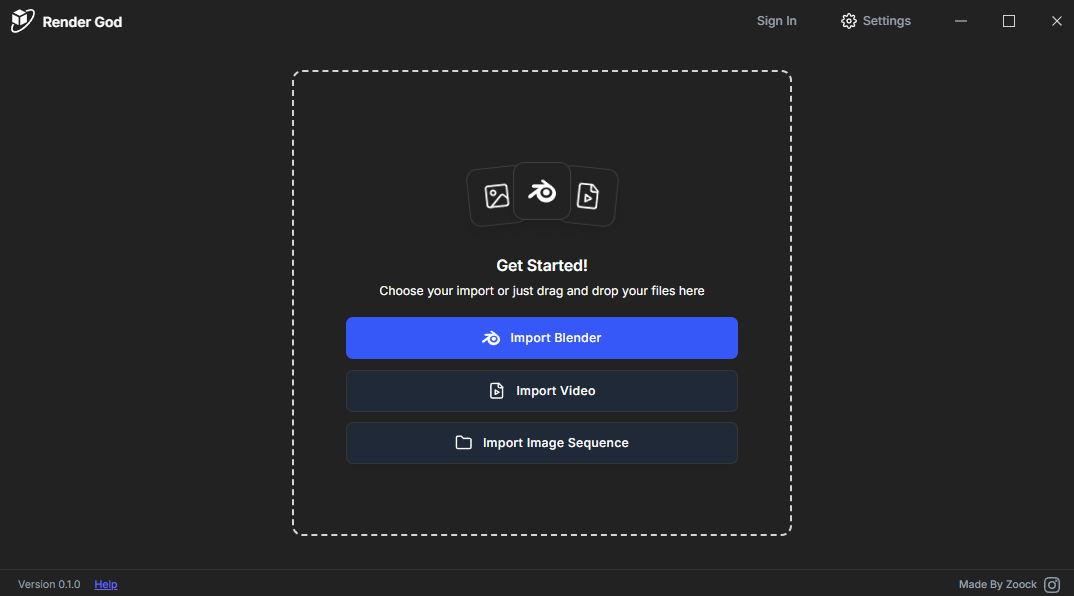
Step 1: Access Sign In
-
In the RenderGod application window, look at the top-right corner
-
Find the "Sign In" button (located next to the Settings button)
-
Click "Sign In" to begin the authentication process
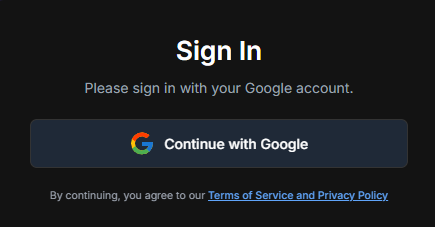
Step 2: Choose Google Account
-
After clicking "Sign In", a dialog appears
-
Click "Sign in with Google" or the Google account option
-
This will open your web browser for authentication
Step 3: Select Google Account
-
Your browser opens to Google's account selection page
-
You'll see a list of Google accounts you're signed into
-
Select the account you want to use with RenderGod
-
Or add a new Google account if needed
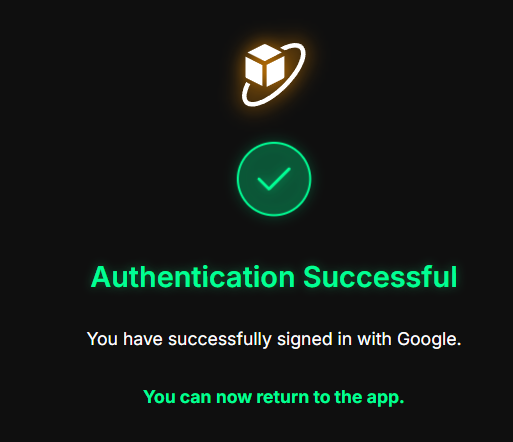
Step 4: Complete Authentication
-
After selecting your account, Google processes the authentication
-
You'll be redirected to a "Sign in successful" page
-
The page confirms that RenderGod has been authorized
-
You can now close the browser tab
Step 5: Return to Application
-
Return to the RenderGod application
-
You should now see that you're signed in
-
Your account information appears in the interface
-
You're ready to use account features!
Note: The authentication process uses secure OAuth 2.0, ensuring your credentials are safe and secure.
Signing Out
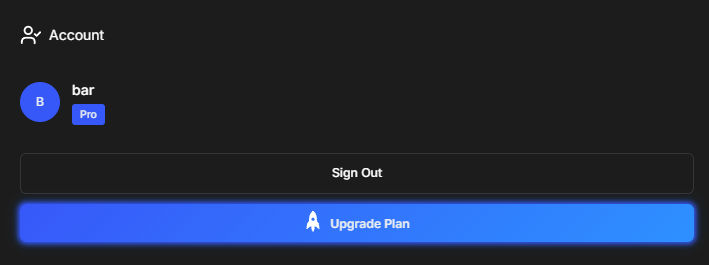
If you need to sign out of your account:
-
Click the Settings button (gear icon) in the top-right corner
-
Scroll down to the bottom of the settings
-
Find the "Account" tab (the lowest tab)
-
Click "Sign Out" to disconnect your account
After signing out:
-
Your account is disconnected
-
Cloud sync features are disabled
-
You'll need to sign in again to access account features
Account Features
While signed in, you can access:
Settings Sync (Future)
-
Sync your RenderGod settings across multiple computers
-
Access your preferences from any device
-
Automatic backup of your configuration
Remote Access (Future)
-
Monitor your renders remotely
-
Control your render queue from anywhere
-
Receive notifications about render status
Account Management
-
View your account information
-
Manage connected services
-
Access account-specific settings
Troubleshooting
Sign In Not Working
-
Check internet connection: Ensure you have an active internet connection
-
Browser issues: Try a different browser if the authentication page doesn't load
-
Firewall: Check if your firewall is blocking the authentication process
-
Try again: Sometimes a second attempt resolves temporary issues
Account Not Syncing
-
Verify sign-in: Ensure you're actually signed in
-
Check settings: Verify account features are enabled
-
Restart application: Sometimes a restart helps sync features work
Security
Your account information is secure:
-
OAuth 2.0: Industry-standard secure authentication
-
No password storage: RenderGod never stores your Google password
-
Secure connection: All authentication uses encrypted HTTPS
-
Token-based: Uses secure tokens, not passwords
Your account is now set up and ready to use!

© 2026 RenderGod. All rights reserved.