Advanced Settings - Expert Configuration Options
Access advanced configuration options for expert users. These settings provide fine-grained control over RenderGod's behavior and performance.
Advanced Settings - Expert Configuration Options
Access advanced configuration options for expert users. These settings provide fine-grained control over RenderGod's behavior and performance.
Overview
Advanced Settings provide access to expert-level configuration options that give you precise control over RenderGod's operation. These settings are typically not needed for normal use but can be useful for specific scenarios or troubleshooting.
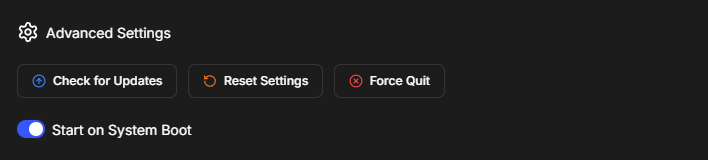
Accessing Advanced Settings
- Click the Settings button (gear icon) in the top-right corner
- Navigate to the "Advanced Settings" tab
- You'll see various advanced configuration options
Available Advanced Options
Performance Settings
- Render thread management: Control how RenderGod uses system threads
- Memory management: Configure memory usage limits
- Process priority: Adjust RenderGod's process priority
- Resource allocation: Control resource allocation strategies
System Integration
- Startup behavior: Configure how RenderGod starts with Windows
- System tray: Control system tray behavior
- Service mode: Run RenderGod as a service (if supported)
- Integration settings: Configure system integration options
Logging and Debugging
- Log level: Set logging verbosity level
- Debug mode: Enable debug mode for troubleshooting
- Log file location: Configure where logs are stored
- Error reporting: Configure error reporting behavior
Network and Communication
- Port configuration: Configure network ports if needed
- Telegram bot settings: Advanced Telegram bot configuration
- API settings: Configure API access if available
- Communication protocols: Advanced communication settings
File Management
- Cache settings: Configure file caching behavior
- Temporary files: Control temporary file management
- File permissions: Configure file permission handling
- Path resolution: Advanced path resolution settings
When to Use Advanced Settings
Normal Use
For normal use, you typically don't need to modify advanced settings:
- Default settings work: Default settings work for most users
- No changes needed: Most users never need to change these
- Safe defaults: Defaults are chosen for optimal performance
Expert Use
Advanced settings are useful for:
- Performance tuning: Optimizing for specific hardware
- Troubleshooting: Diagnosing and fixing issues
- Custom workflows: Supporting custom workflow requirements
- System integration: Integrating with specific system configurations
Best Practices
Before Changing Advanced Settings
- Understand the setting: Make sure you understand what the setting does
- Document changes: Note what you changed and why
- Test thoroughly: Test changes with small jobs first
- Backup settings: Save your current settings before making changes
Making Changes
- Change one at a time: Make one change at a time to identify effects
- Test each change: Test after each change
- Monitor performance: Watch for performance impacts
- Revert if needed: Revert changes if they cause problems
Safety
- Default values: Most settings have safe defaults
- Reset option: You can reset to defaults if needed
- Documentation: Refer to documentation for setting descriptions
- Support: Contact support if you're unsure about a setting
Resetting Advanced Settings
If you need to reset advanced settings:
- Go to Settings > Advanced Settings
- Look for "Reset to Defaults" or similar option
- Confirm the reset
- Settings return to default values
Troubleshooting
Settings Not Taking Effect
- Restart RenderGod: Some settings require a restart
- Check permissions: Ensure RenderGod has necessary permissions
- Verify values: Check that settings are saved correctly
- Check logs: Review logs for error messages
Performance Issues
- Check settings: Review advanced settings for performance impacts
- Reset to defaults: Try resetting to defaults
- Monitor resources: Check system resource usage
- Optimize settings: Adjust settings for your system
Related Features
- Default Settings: Configure default job settings
- System Integration: Configure system-level features
- Performance Optimization: Optimize RenderGod performance
Advanced Settings provide expert-level control. Use them carefully and only when needed!

© 2026 RenderGod. All rights reserved.