Blender Render Queue - Complete Guide
Comprehensive guide to using RenderGod's Blender render queue. Learn about importing, smart detection, render settings, presets, and all the features that make
Blender Render Queue - Complete Guide
Comprehensive guide to using RenderGod's Blender render queue. Learn about importing, smart detection, render settings, presets, and all the features that make batch rendering efficient and reliable.
Overview
The Blender Render Queue is the core feature of RenderGod, allowing you to manage multiple Blender render jobs efficiently. It provides smart detection of render settings, customizable presets, and powerful queue management capabilities.
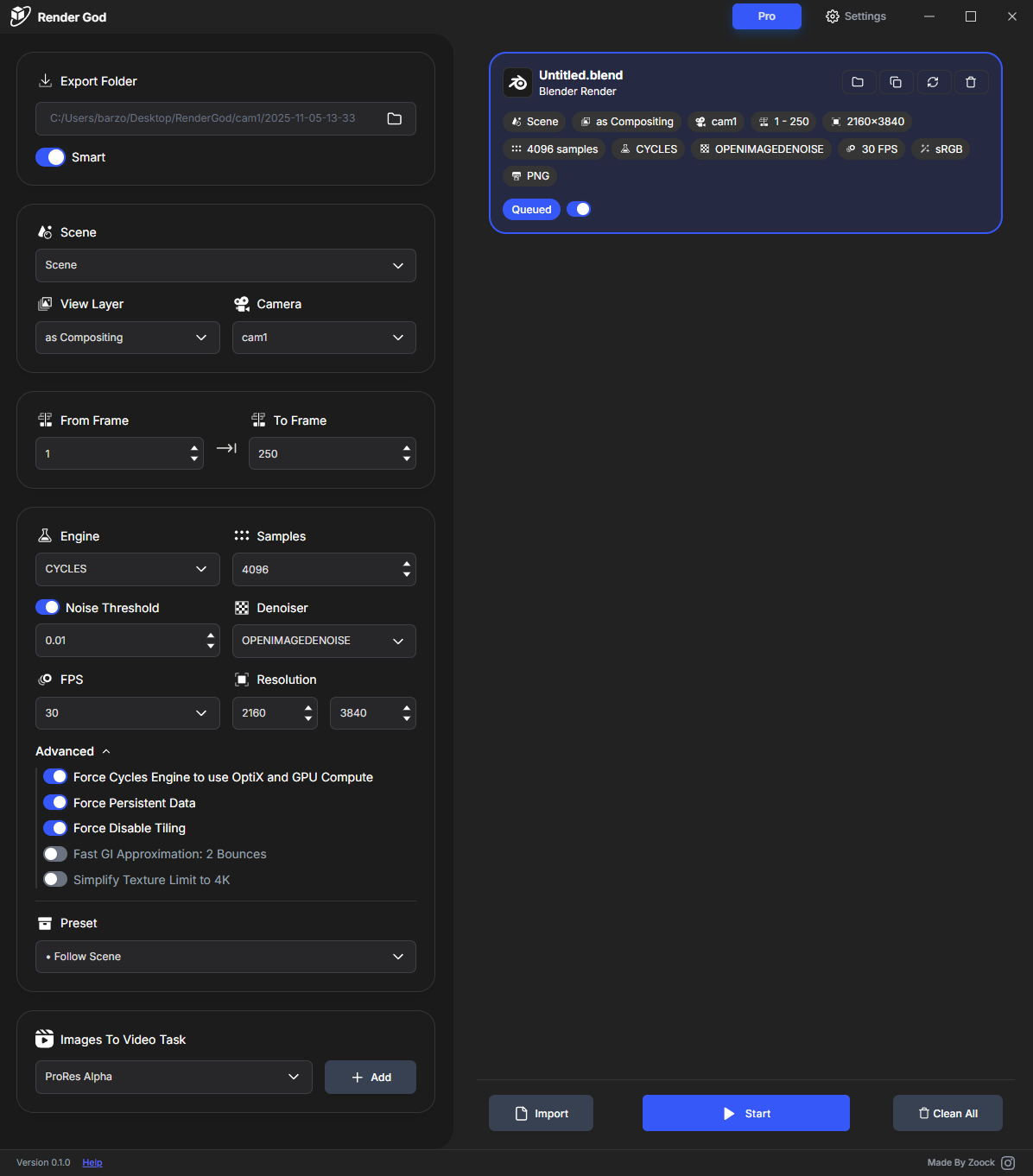
Importing Blender Files
You can import Blender files to the queue using multiple methods:
Import Methods
- Drag and drop: Drag `.blend` files directly onto RenderGod
- Import button: Use the import button in the interface
- Blender addon: Send directly from Blender using the addon
For detailed import instructions, see the "Importing Blender Files" section.
Smart Settings Detection
Automatic Detection
When you import a Blender file, RenderGod automatically detects:
- Render resolution: Resolution from your Blender project
- Frame range: Start and end frames
- Output format: Image or video format settings
- Scene selection: Which scene to render
- Camera settings: Active camera configuration
- View layer: View layer settings
- Render engine: Cycles, Eevee, or other render engines
- Output path: Where Blender is set to save renders
Manual Override
You can override any detected setting:
- Modify settings: Change any setting after import
- Custom configurations: Apply custom render configurations
- Preset application: Apply saved presets
- Per-job settings: Each job can have unique settings
Render Settings Configuration
Resolution Settings
Configure render resolution:
- Width and height: Set custom resolution
- Percentage: Render at percentage of project resolution
- Aspect ratio: Maintain or override aspect ratio
- Lock aspect: Lock aspect ratio when resizing
Frame Range
Set which frames to render:
- Start frame: First frame to render
- End frame: Last frame to render
- Step: Frame step (render every Nth frame)
- Frame selection: Select specific frames if needed
Output Format
Choose output format:
- Image sequence: PNG, EXR, JPEG, etc.
- Video file: MP4, MOV, etc.
- Format-specific settings: Configure format-specific options
- Quality settings: Adjust quality and compression
Scene and Camera
Select what to render:
- Scene selection: Choose which scene to render
- Camera selection: Select active camera
- View layer: Choose view layer to render
- Multiple options: Render multiple scenes/cameras/view layers
Reloading Settings
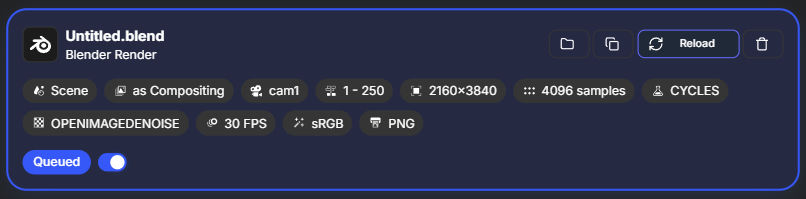
If you update your Blender file and save it, you can reload the settings in RenderGod:
- Open the job card in the queue
- Click the "Reload" button at the top of the job card
- RenderGod re-scans the Blender file
- Updated settings are detected and applied
This is useful when:
- You change render settings in Blender
- You update the project file
- You want to sync settings from Blender
Presets
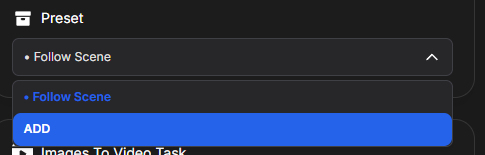
Follow Scene (Default)
The default preset is "Follow scene", which uses:
- Blender project settings: Settings from your saved Blender file
- Last saved state: Settings as they were when last saved
- Project-based: Each project uses its own settings
Custom Presets
You can create and use custom presets:
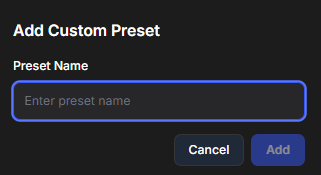
- Create preset: Save current settings as a preset
- Apply preset: Apply saved preset to any job
- Preset management: Edit, delete, or organize presets
- Quick application: Apply presets with one click
Preset Benefits
- Consistency: Use same settings across multiple projects
- Time saving: Apply settings quickly without manual configuration
- Standardization: Standardize render settings for teams
- Flexibility: Override presets when needed
Export Folder Access
You can quickly access the export folder for any job:
- Open the job card in the queue
- Click the folder button at the top of the job card
- Windows Explorer opens to the export folder
- You can view, manage, or access rendered files
This works even during rendering, so you can check progress files as they're created.
Job Card Features
Each job card in the queue provides:
- Settings display: See all render settings at a glance
- Edit capabilities: Modify settings directly on the card
- Status indicators: See current render status
- Progress information: View render progress
- Quick actions: Access common actions quickly
Best Practices
Before Rendering
- Review settings: Check all detected settings are correct
- Verify paths: Ensure export paths are correct
- Check disk space: Verify sufficient disk space
- Test with small range: Test with a small frame range first
During Rendering
- Monitor progress: Check progress periodically
- Watch for errors: Monitor for any errors or issues
- Check disk space: Ensure disk space is sufficient
- Use Telegram bot: Monitor remotely if needed
After Rendering
- Verify completion: Confirm all frames rendered
- Check quality: Review rendered output quality
- Organize files: Organize rendered files if needed
- Archive if needed: Archive old renders to free space
Related Features
- Auto Image Sequence to Video: Automatically convert renders to video
- Multiple Queue: Duplicate jobs for different scenes/cameras
- Queue Management: Manage and organize your render queue
- Smart Export Path: Automatic folder organization
The Blender Render Queue is now ready for efficient batch rendering!

© 2026 RenderGod. All rights reserved.