Multiple Queue and Duplication Features
Efficiently duplicate render jobs and create multiple variations for different scenes, cameras, and view layers. Save time by generating all necessary render jo
Multiple Queue and Duplication Features
Efficiently duplicate render jobs and create multiple variations for different scenes, cameras, and view layers. Save time by generating all necessary render jobs with a single action.
Overview
The Multiple Queue feature allows you to quickly duplicate jobs and create variations for all scenes, cameras, or view layers in your Blender project. This eliminates the need to manually create multiple jobs for different render configurations.
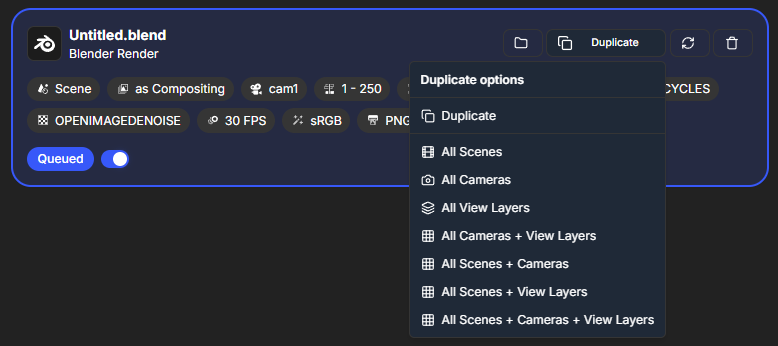
Duplication Methods
You can duplicate jobs using two methods:
Method 1: Duplicate Button
- Open a job card in the queue
- Click the "Duplicate" button on the job card
- A duplication menu appears with options
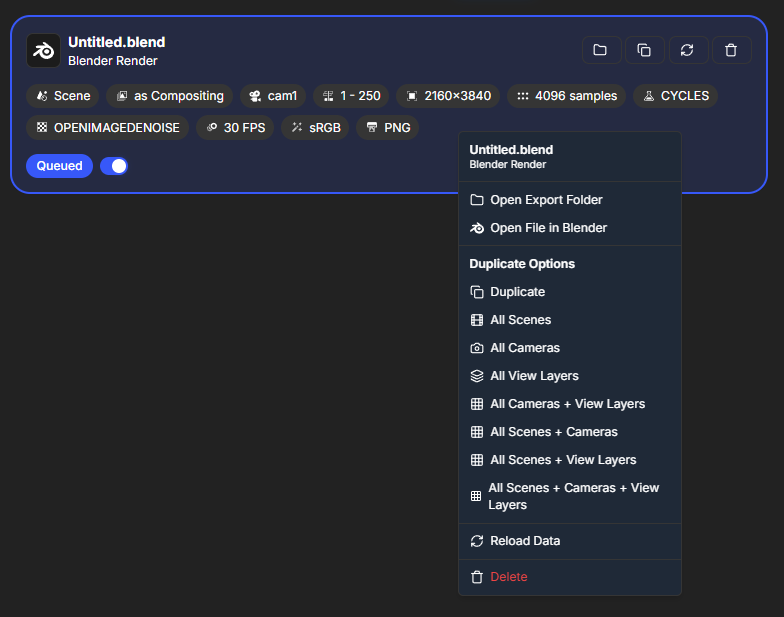
Method 2: Right-Click Menu
- Right-click on a job card in the queue
- A context menu appears
- Select duplication options from the menu
Duplication Options
Standard Duplicate
What it does: Creates an exact copy of the job with all current settings.
- Exact copy: All settings are duplicated exactly
- Smart folder update: Export folder is automatically updated (Smart Export Path)
- Independent job: New job is independent and can be modified
- Queue addition: New job is added to the queue
Use when: You want to render the same project with different settings manually.
All Scenes
What it does: Deletes the original job and creates a new job for each scene in your Blender project.
- One job per scene: Each scene gets its own render job
- Original deleted: The original job is removed
- All scenes rendered: Every scene in the project is queued
- Automatic setup: All jobs are configured automatically
Use when: You want to render all scenes from a Blender project.
All Cameras
What it does: Deletes the original job and creates a new job for each camera in the active scene.
- One job per camera: Each camera gets its own render job
- Original deleted: The original job is removed
- All cameras rendered: Every camera is queued for rendering
- Automatic setup: Camera selection is automatic for each job
Use when: You want to render the same scene from multiple camera angles.
All View Layers
What it does: Deletes the original job and creates a new job for each view layer in the active scene.
- One job per view layer: Each view layer gets its own render job
- Original deleted: The original job is removed
- All view layers rendered: Every view layer is queued
- Automatic setup: View layer selection is automatic
Use when: You want to render the same scene with different view layer configurations.
All Cameras + View Layers
What it does: Creates jobs for every combination of camera and view layer.
- Combination jobs: One job for each camera/view layer combination
- Comprehensive coverage: All possible combinations are rendered
- Original deleted: The original job is removed
- Automatic combinations: All combinations are set up automatically
Use when: You need renders from every camera with every view layer.
All Scenes + Cameras
What it does: Creates jobs for every scene and camera combination.
- Scene and camera jobs: One job for each scene/camera combination
- All combinations: Every scene with every camera
- Original deleted: The original job is removed
- Comprehensive rendering: All scene/camera combinations
Use when: You want to render every scene from every camera angle.
All Scenes + View Layers
What it does: Creates jobs for every scene and view layer combination.
- Scene and view layer jobs: One job for each scene/view layer combination
- All combinations: Every scene with every view layer
- Original deleted: The original job is removed
- Complete coverage: All scene/view layer combinations
Use when: You need every scene rendered with every view layer.
All Scenes + Cameras + View Layers
What it does: Creates jobs for every possible combination of scene, camera, and view layer.
- Complete combinations: Every possible combination
- Maximum coverage: All scenes, cameras, and view layers
- Original deleted: The original job is removed
- Comprehensive: Most comprehensive duplication option
Use when: You need complete coverage of all render variations.
How Duplication Works
Process
- Select duplication option: Choose the duplication type you want
- Analysis: RenderGod analyzes your Blender project
- Job creation: New jobs are created based on the option
- Original handling: Original job is deleted (for combination options) or kept (for standard duplicate)
- Queue update: Queue is updated with new jobs
- Smart folder update: Export folders are automatically updated for each job
Smart Export Path
When jobs are duplicated:
- Automatic folder setup: Each job gets its own export folder
- Smart naming: Folders are named based on scene/camera/view layer
- Organization: All outputs are well-organized automatically
- No conflicts: Each job has a unique output location
Best Practices
Before Duplicating
- Save Blender project: Ensure your Blender project is saved
- Review settings: Check that render settings are correct
- Plan combinations: Plan which combinations you actually need
- Check disk space: Ensure sufficient disk space for all renders
Choosing Options
- Standard duplicate: Use when you want manual control
- Specific combinations: Choose only combinations you need
- Avoid over-duplication: Don't create more jobs than necessary
- Test first: Test with a small project first
After Duplicating
- Review queue: Check that all jobs were created correctly
- Verify settings: Confirm settings are correct for each job
- Check folders: Verify export folders are set up correctly
- Start rendering: Begin rendering when ready
Workflow Examples
Example 1: All Scenes
Scenario: You have a Blender project with 3 scenes and want to render all of them.
- Import the Blender file
- Click "Duplicate" > "All Scenes"
- 3 jobs are created (one per scene)
- Render all scenes automatically
Example 2: Multiple Cameras
Scenario: You have one scene with 5 cameras and want renders from each.
- Import the Blender file
- Click "Duplicate" > "All Cameras"
- 5 jobs are created (one per camera)
- Render from all camera angles
Example 3: Complete Coverage
Scenario: You need every possible combination for a project.
- Import the Blender file
- Click "Duplicate" > "All Scenes + Cameras + View Layers"
- All combination jobs are created
- Comprehensive rendering coverage
Troubleshooting
Jobs Not Created
- Check Blender file: Verify the Blender file has the scenes/cameras/view layers
- Check project: Ensure the project is saved and accessible
- Try standard duplicate: Test with standard duplicate first
- Check logs: Review RenderGod logs for errors
Too Many Jobs
- Be selective: Only duplicate what you need
- Remove extras: Delete jobs you don't need
- Plan ahead: Plan your duplication strategy
- Use standard duplicate: Use standard duplicate for manual control
Folder Issues
- Check Smart Export Path: Verify Smart Export Path is working
- Check disk space: Ensure sufficient disk space
- Review folder names: Check that folder names are valid
- Manual override: Set folders manually if needed
Related Features
- Blender Render Queue: Source jobs for duplication
- Smart Export Path: Automatic folder organization
- Queue Management: Manage duplicated jobs
- Batch Rendering: Process all duplicated jobs efficiently
Multiple Queue and Duplication features save time by automating job creation. Use them to efficiently render all variations of your projects!

© 2026 RenderGod. All rights reserved.