Uncrash Render Feature - Advanced Crash Recovery
The Uncrash Render feature is a powerful protection system that ensures your renders complete successfully even if Blender crashes, your system restarts, or oth
Uncrash Render Feature - Advanced Crash Recovery
The Uncrash Render feature is a powerful protection system that ensures your renders complete successfully even if Blender crashes, your system restarts, or other failures occur. This feature provides peace of mind for long renders and unattended batch processing.
Overview
Uncrash Render is a special feature designed to protect your renders from crashes. Even if the render crashes, there are multiple automated processes and algorithms that know how to handle it and will automatically bring your render back up and continue without any button presses. You can leave your computer and rest assured that nothing will go wrong. It will never crash.
What Makes Uncrash Render Special
Automatic Recovery
- No manual intervention: Renders recover automatically from crashes
- Intelligent algorithms: Advanced systems handle various failure scenarios
- Seamless continuation: Renders continue where they left off
- Peace of mind: Leave your computer with confidence
Multiple Protection Layers
Uncrash Render provides protection at multiple levels:
- Blender crash recovery: Recovers from Blender application crashes
- System restart recovery: Recovers from system crashes and restarts
- Intelligent frame timeout: Detects and handles stuck frames
Configuration
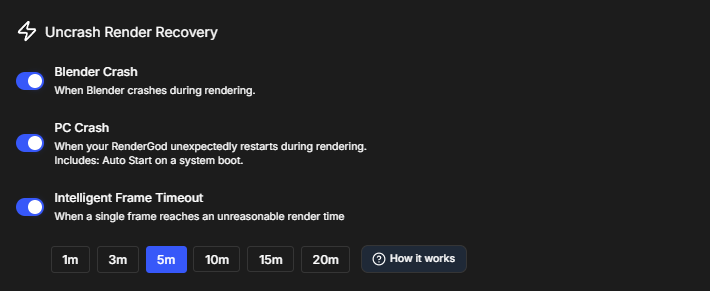
Access Uncrash Render settings:
- Go to Settings > Uncrash Render Recovery tab
- You'll see multiple toggles for different recovery options
- Configure each option based on your needs
Protection Option 1: Blender Crash Recovery
What It Does
When Blender crashes in the background, this option automatically restarts it and continues rendering. This handles crashes from any cause.
How It Works
- Monitors Blender: Continuously monitors the Blender process
- Detects crashes: Immediately detects when Blender crashes
- Automatic restart: Restarts Blender automatically
- Resumes rendering: Continues rendering from where it stopped
- No data loss: Rendered frames are preserved
Enabling
- In Uncrash Render Recovery settings, find "Blender Crash" toggle
- Enable the toggle to activate automatic Blender crash recovery
- The feature is now active for all renders
Use Cases
- Long renders: Essential for overnight or multi-day renders
- Complex projects: Projects that may stress Blender
- Unattended rendering: Renders you can't monitor
- Production work: Critical renders that must complete
Recommendation: We highly recommend enabling Blender crash recovery for all renders, especially long or unattended ones.
Protection Option 2: System Restart Recovery
What It Does
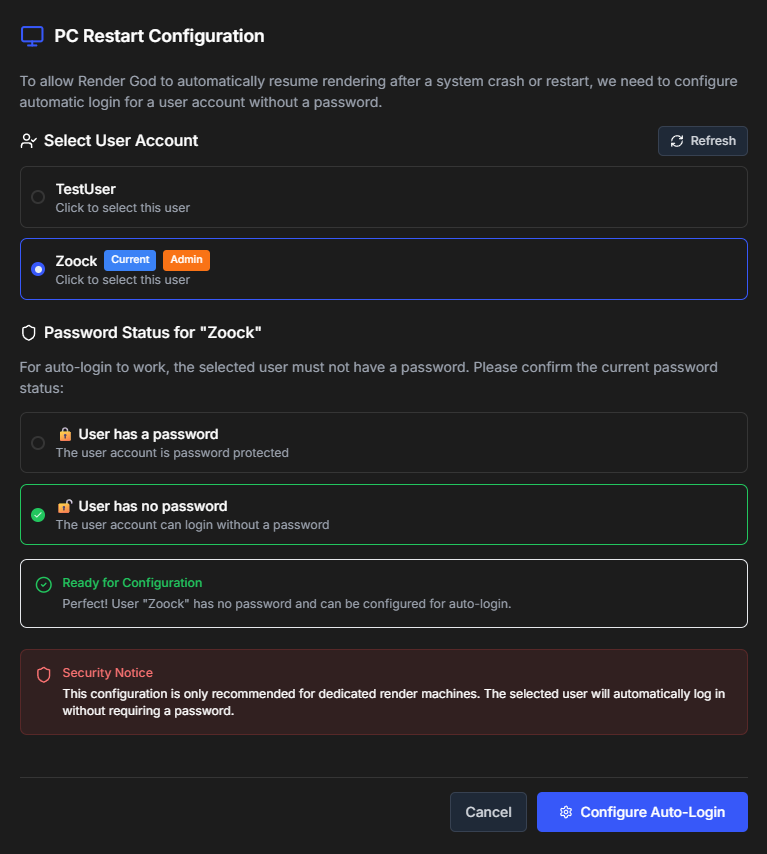
If your computer crashes and restarts (blue screen, power outage, or just a system crash), this option will save you. It also includes RenderGod starting automatically with system startup.
Important Considerations
This option is considered slightly less secure and is more recommended for home computers rather than public computers or laptops that travel. This option requires disabling the user password on your computer for the computer to boot automatically without intervention (you can still enable it, but it won't be exactly automatic - you'll need to enter the user password, and then the computer will boot and automatically start RenderGod and continue).
How It Works
- System monitoring: Monitors system stability
- Detects crashes: Detects system crashes and restarts
- Auto-startup: RenderGod starts automatically with Windows
- Resume rendering: Automatically resumes rendering from last checkpoint
- Recovery: Recovers all in-progress work
Security Note
⚠️ Security Warning: This feature requires:
- Disable password: User password must be disabled for full automation
- Auto-login: System must auto-login on startup
- Less secure: Makes your computer less secure
- Home use: Recommended for home computers only
Enabling
- In Uncrash Render Recovery settings, find "System Restart Recovery" toggle
- Enable the toggle to activate system restart recovery
- Configure Windows: Set up Windows auto-login (optional but recommended)
- Set startup: Ensure RenderGod starts with Windows
Use Cases
- Overnight renders: Essential for long unattended renders
- Home computers: Personal computers in secure locations
- Stable systems: Systems with occasional crashes
- Critical work: Renders that must complete despite system issues
Warning: Only enable this on secure, personal computers. Not recommended for shared or public computers.
Protection Option 3: Intelligent Frame Timeout
What It Does
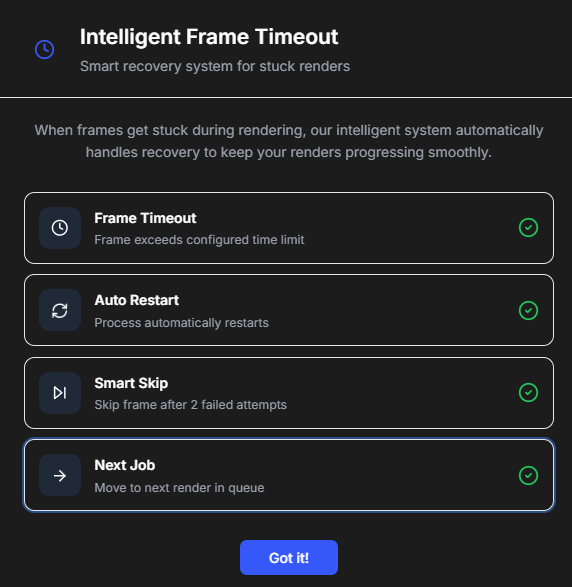
Intelligent Frame Timeout detects when a frame is taking too long to render (stuck or frozen) and automatically handles it by skipping the problematic frame or restarting the render process.
How It Works
- Frame monitoring: Monitors the time each frame takes to render
- Timeout detection: Detects when a frame exceeds expected render time
- Problem analysis: Determines if the frame is stuck
- Automatic handling: Skips the frame or restarts as needed
- Continue rendering: Proceeds with remaining frames
Configuration
The Intelligent Frame Timeout can be configured with:
- Timeout threshold: Set how long a frame can take before timeout
- Action on timeout: Choose to skip frame or restart render
- Retry logic: Configure retry attempts for problematic frames
Enabling
- In Uncrash Render Recovery settings, find "Intelligent Frame Timeout" toggle
- Enable the toggle to activate frame timeout detection
- Configure timeout: Set appropriate timeout values for your renders
- The feature is now active
Use Cases
- Problematic frames: Frames that tend to get stuck
- Complex scenes: Scenes with rendering issues
- Long frame times: Frames that should complete but don't
- Unattended renders: Renders you can't monitor for stuck frames
Best Practices
Enabling All Protections
For maximum reliability, enable all three protection options:
- ✅ Blender Crash Recovery: Essential for all renders
- ✅ Intelligent Frame Timeout: Recommended for complex projects
- ⚠️ System Restart Recovery: Only on secure home computers
System Configuration
For System Restart Recovery:
- Disable password: Set Windows to auto-login (optional)
- Startup programs: Ensure RenderGod starts with Windows
- Power settings: Configure power settings to prevent sleep during renders
- Test first: Test the system restart recovery before relying on it
Monitoring
Even with Uncrash Render enabled:
- Check periodically: Monitor renders occasionally
- Use Telegram bot: Check status remotely
- Review logs: Check RenderGod logs for recovery events
- Verify completion: Confirm renders complete successfully
Troubleshooting
Recovery Not Working
- Check toggles: Verify protection options are enabled
- Check permissions: Ensure RenderGod has necessary permissions
- Check logs: Review RenderGod logs for error messages
- Restart RenderGod: Sometimes a restart helps
System Restart Issues
- Check auto-login: Verify Windows auto-login is configured
- Check startup: Ensure RenderGod is in startup programs
- Test manually: Test system restart recovery manually
- Security settings: Check Windows security settings
Frame Timeout Issues
- Adjust timeout: Increase timeout threshold if frames need more time
- Check frame complexity: Complex frames may legitimately take longer
- Review logs: Check which frames are timing out and why
- Disable if needed: Disable if causing more problems than it solves
Related Features
- Action When Done: Configure automatic actions after renders complete
- Telegram Bot: Monitor renders remotely
- Queue Management: Manage renders that use Uncrash Render
Uncrash Render ensures your renders complete successfully no matter what happens. Enable it today for worry-free rendering!

© 2026 RenderGod. All rights reserved.