Auto Image Sequence to Video - Automatic Video Creation
Automatically convert Blender renders to video files immediately after rendering completes. This feature streamlines your workflow by eliminating the need for m
Auto Image Sequence to Video - Automatic Video Creation
Automatically convert Blender renders to video files immediately after rendering completes. This feature streamlines your workflow by eliminating the need for manual conversion steps.
Overview
Auto Image Sequence to Video automatically creates video files from your Blender render outputs. After a Blender render completes, RenderGod can immediately convert the rendered image sequence into a video file, saving you time and effort.
When to Use
This feature is highly recommended because:
- Fast and efficient: Quick video creation with good quality
- Alpha channel support: Can create videos with alpha channels
- Automatic workflow: No manual conversion needed
- Time saving: Eliminates extra conversion steps
- Quality options: Multiple video format options available
How It Works
Automatic Conversion
After a Blender render completes:
- Render finishes: Blender render job completes
- Auto-detection: RenderGod detects the completed image sequence
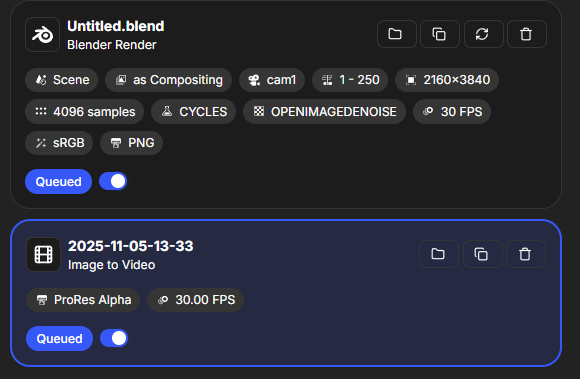
- Conversion job added: A new "Image Sequence to Video" job is automatically added to the queue
- Automatic linking: The import folder is automatically set to the Blender render's export folder
- Video creation: Video is created from the image sequence
Setting Up Auto Conversion
Step 1: Configure Default Video Preset
- Go to Settings > Default Settings
- Find the Image Sequence to Video section
- Select your preferred default video preset
- This preset will be used for auto-conversions
Step 2: Enable Auto Conversion
- Open a Blender render job card in the queue
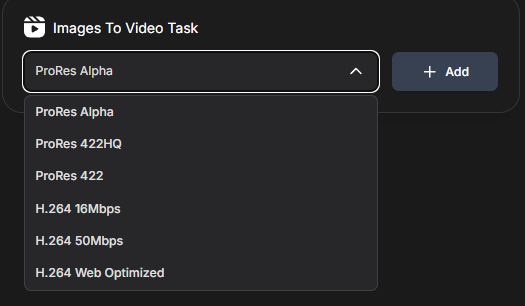
- Find the video preset selector at the bottom of the job card
- Select a video preset from the dropdown
- Click "Add" to enable auto-conversion for this job
Step 3: Automatic Processing
After rendering:
- Blender render completes
- Image sequence to video job is automatically added
- Conversion begins automatically (or when you start the queue)
- Video file is created in the same location
Video Preset Options
You can choose from various video presets:
- ProRes 422HQ: High quality professional format
- ProRes 422: Standard ProRes format
- H.264 16Mbps: High quality H.264
- H.264 50Mbps: Higher bitrate H.264
- H.264 Web Optimized: Web-optimized H.264
Select the preset that matches your needs.
Configuration
Default Preset
You can set a default video preset:
- Go to Settings > Default Settings
- Configure the default Image Sequence to Video preset
- This default is used when you enable auto-conversion
Per-Job Configuration
You can also configure auto-conversion per job:
- Select video preset on the job card
- Click "Add" to enable for that specific job
- Each job can use a different preset if needed
Workflow Benefits
Time Saving
- No manual steps: Eliminates manual conversion workflow
- Automatic processing: Conversion happens automatically
- Batch processing: Works with batch rendering
- Efficient pipeline: Streamlined render-to-video pipeline
Quality
- High quality: Video creation is fast and produces good quality
- Alpha support: Can create videos with alpha channels
- Format options: Multiple format options for different needs
- Professional output: Professional-quality video files
Convenience
- One-step process: Render and convert in one workflow
- No extra software: No need for separate conversion tools
- Integrated workflow: Fully integrated into RenderGod
- Consistent results: Consistent video output every time
Best Practices
Preset Selection
- Match delivery: Choose preset that matches your delivery needs
- Quality vs. size: Balance quality with file size requirements
- Consistent use: Use consistent presets across projects
- Test first: Test preset with small render first
Workflow Integration
- Enable early: Enable auto-conversion when setting up render
- Plan ahead: Consider video format needs before rendering
- Monitor disk space: Video files can be large
- Organize outputs: Use Smart Export Path for organization
Troubleshooting
Conversion Not Happening
- Check preset: Verify video preset is selected
- Check "Add": Ensure you clicked "Add" to enable conversion
- Check queue: Verify conversion job was added to queue
- Check settings: Review default settings configuration
Video Quality Issues
- Try different preset: Test different video presets
- Check source: Verify image sequence quality
- Review settings: Check video encoding settings
- Test format: Try different video format
Related Features
- Image Sequence to Video: Manual conversion feature
- Default Settings: Configure default video presets
- Blender Render Queue: Source of image sequences
- Queue Management: Manage conversion jobs
Auto Image Sequence to Video streamlines your render-to-video workflow. Enable it for automatic video creation!

© 2026 RenderGod. All rights reserved.