Installing the Blender Addon
Complete guide to installing the RenderGod Blender Addon. Choose between automatic installation (recommended) or manual installation based on your preferences.
Installing the Blender Addon
Complete guide to installing the RenderGod Blender Addon. Choose between automatic installation (recommended) or manual installation based on your preferences.
Installation Overview
The RenderGod Blender Addon can be installed in two ways:
- Automatic Installation (Recommended) - One-click installation with automatic version detection
- Manual Installation - Download the addon file and install it yourself in Blender
Accessing the Addon Installation
There are two ways to access the addon installation dialog in RenderGod:
Method 1: Settings Menu
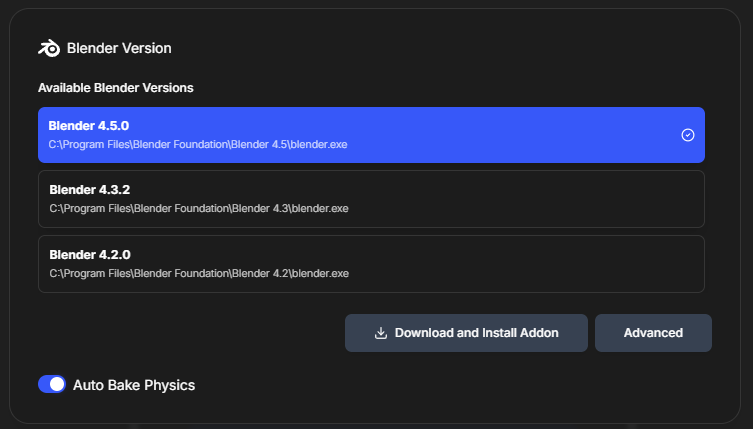
- Click the Settings button (gear icon) in the top-right corner of RenderGod
- Scroll down to the Blender settings section
- Find the "Download and install Addon" button
- Click the button to open the addon installation dialog
Method 2: Quick Popup (When Queue is Empty)

When your render queue is empty, you'll see a popup with a quick access button to install the addon.
- The popup appears automatically when the queue is empty
- Click the button in the popup to open the addon installation dialog
Hiding the Popup

If you don't want to see the popup again:
- Hover your mouse over the X button in the popup
- A "Don't show again" option will appear
- Click "Don't show again" to hide the popup permanently
Restoring the Popup
You can always restore the popup later:
- Go to Settings > Defaults tab
- Find the BLENDER section
- Look for the option to restore the addon installation popup
- Enable it to show the popup again when the queue is empty
Automatic Installation (Recommended)
Automatic installation is the easiest and fastest method. RenderGod handles everything for you.
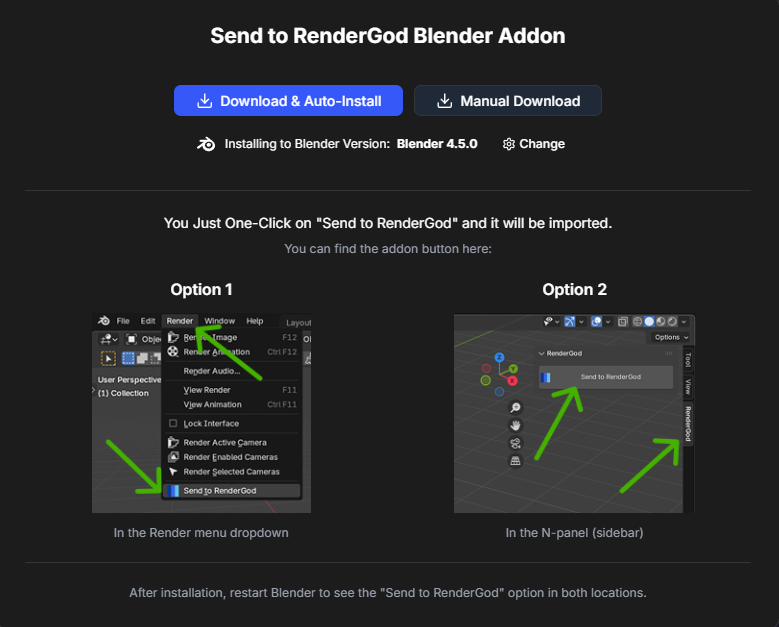
Step 1: Open Installation Dialog
After clicking "Download and install Addon" or the popup button, the addon installation dialog opens.
Step 2: Choose Installation Method
The dialog shows two options:
- Download & Auto-Install (Recommended) - Automatic installation
- Manual Download - Download the addon file for manual installation
Step 3: Select Blender Version
Important: The addon will be installed to the Blender version that RenderGod is currently configured to use.
- Check the displayed Blender version
- If you need to change it, click the "CHANGE" button
- Select a different Blender version from the list
- Note: The version you select here becomes the Blender version RenderGod uses for all operations
Critical: The Blender version you choose for addon installation will be the version RenderGod uses for all rendering operations. Make sure this is the version you want to use.
Step 4: Start Auto-Installation
- Click "Download & Auto-Install"
- Wait a few seconds for the installation to complete
- You'll see a success message: "Addon Installed Successfully!"
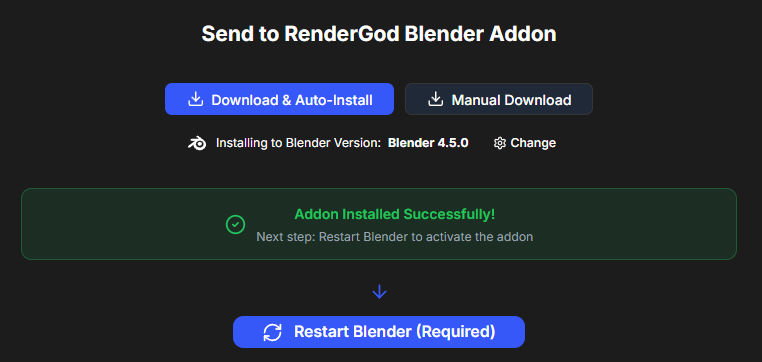
The message will also say: "Next step: start Blender to activate the addon"
Step 5: Restart Blender (Required)
After successful installation:
- Click the "Restart Blender (Required)" button
- Important: Make sure no unsaved Blender projects are open, or save any open projects first
Warning: Before restarting Blender, ensure all your work is saved. The restart will close Blender, and any unsaved projects will be lost.
Step 6: Confirm Restart (Double-Click Safety)
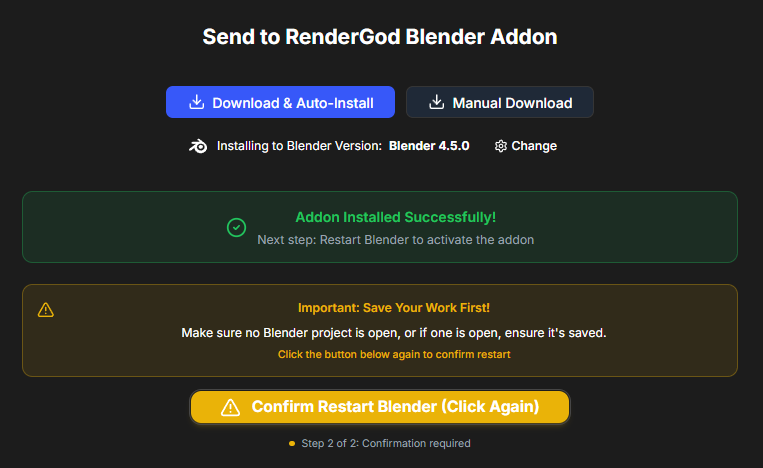
For safety, you'll need to confirm the restart:
- Click the button again: "Confirm Restart Blender (click again)"
- This double-click confirmation prevents accidental restarts
Step 7: Blender Restarts
After confirmation:
- Blender will automatically close
- Blender will then restart automatically
- The addon will be active and ready to use
Step 8: Complete Installation
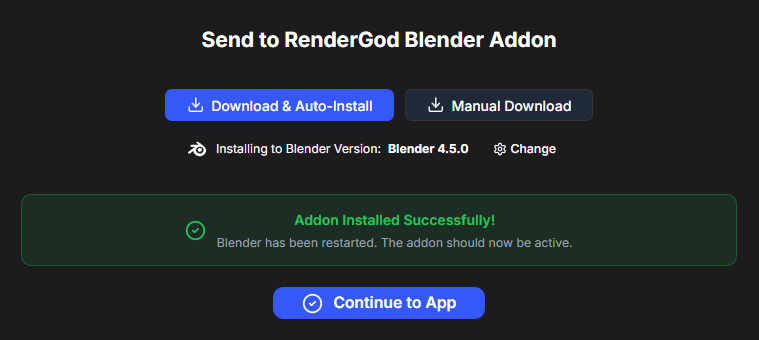
After Blender restarts:
- In RenderGod, click "Continue to App" to close the addon installation dialog
- The installation is complete!
Manual Installation
If you prefer to install the addon manually, follow these steps:
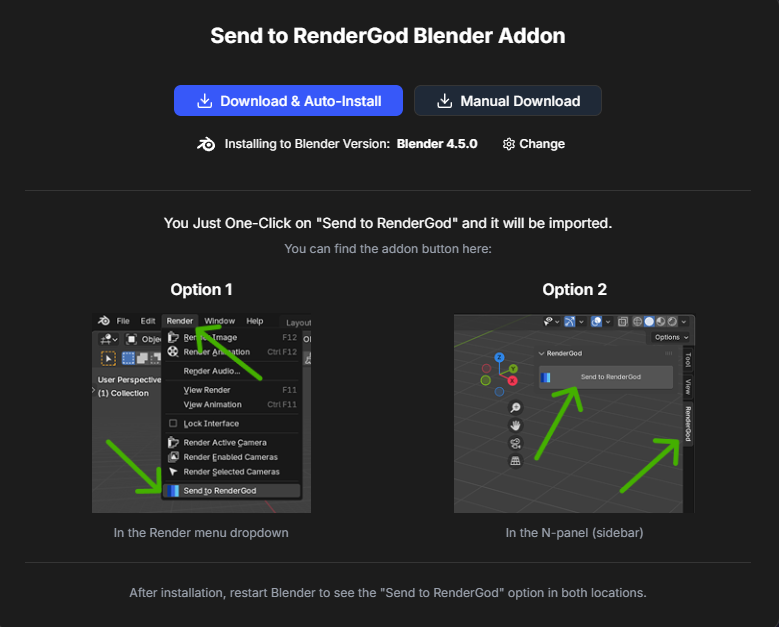
Step 1: Download Addon File
- In the addon installation dialog, click "Manual Download"
- A Windows save dialog will open
- Choose a location to save the addon file (`RenderGod_addon.py`)
- Click "Save" to download the file
Step 2: Open Blender Preferences
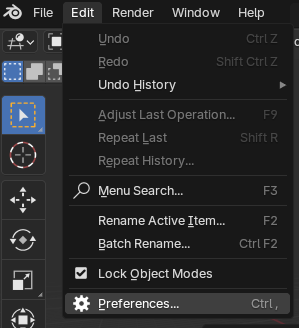
- Open Blender
- In the top menu, click Edit
- Select Preferences from the menu
Step 3: Navigate to Add-ons
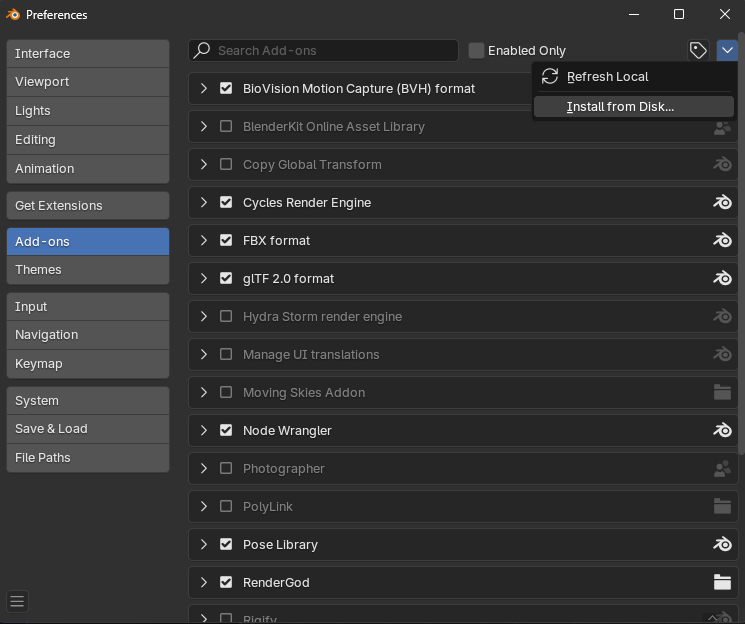
- In the Preferences window, click the Add-ons tab
- Look for the small dropdown arrow in the top-right corner
- Click the dropdown arrow
- Select "Install from Disk…" from the menu
Step 4: Select Addon File
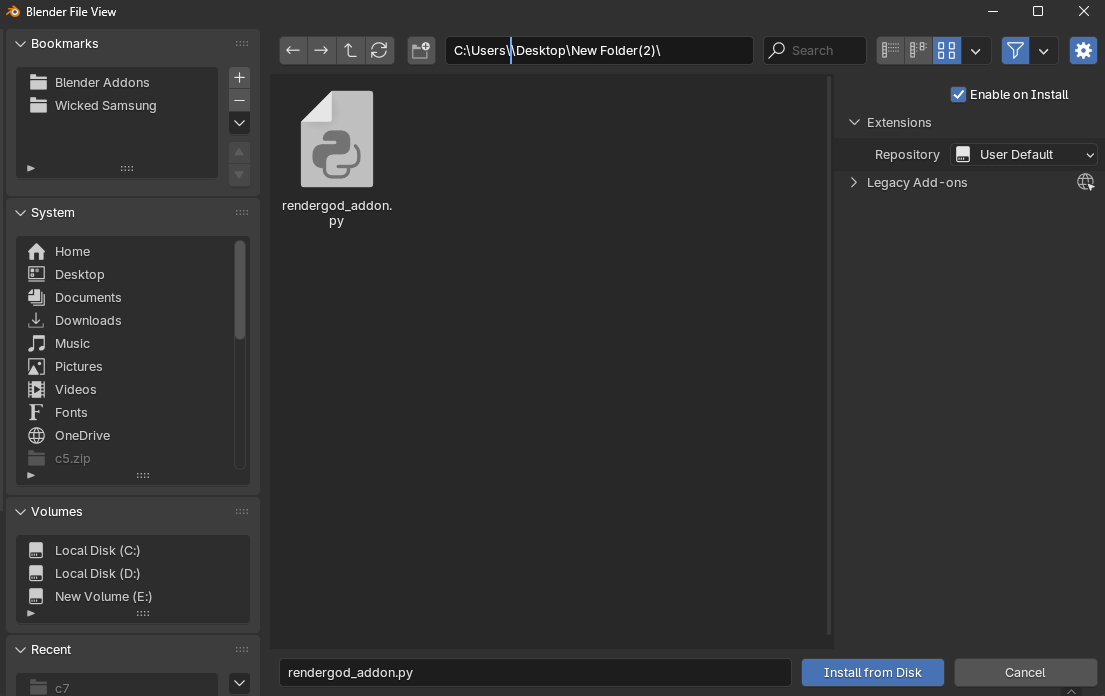
- In the file dialog, navigate to where you saved RenderGod_addon.py
- Select the RenderGod_addon.py file
- Click "Install from disk"
Step 5: Installation Complete
The addon is now installed! You should see it in your Add-ons list. Make sure it's enabled by checking the checkbox next to it.
Verification
After installation (automatic or manual), verify the addon is working:
- Open Blender
- Check the Render menu: You should see "Send To RenderGod" option
- Check the N-panel: Press N and look for the RenderGod tab
- Test it: Send a test project to RenderGod to confirm it works
Troubleshooting
Addon Not Appearing in Blender
- Restart Blender: Some installations require a full Blender restart
- Check Add-ons list: Verify the addon appears in Blender's Add-ons preferences
- Enable addon: Make sure the checkbox next to the addon is checked
Installation Failed
- Check Blender version: Ensure you're using a supported Blender version (2.80+)
- Check permissions: Ensure RenderGod has permission to install files
- Try manual installation: If automatic installation fails, try manual installation
Blender Version Mismatch
- Check RenderGod settings: Verify which Blender version RenderGod is configured to use
- Reinstall addon: Uninstall and reinstall the addon for the correct version
- Update configuration: Change RenderGod's Blender version setting if needed
Next Steps
Now that the addon is installed:
- Learn how to use the addon to send projects from Blender
- Configure your Blender version in RenderGod settings
- Start sending projects to your render queue!
The addon installation is complete, and you're ready to streamline your Blender-to-RenderGod workflow!

© 2026 RenderGod. All rights reserved.