Blender Version Configuration
Configure which version of Blender RenderGod uses for all rendering operations. This is a critical setting that affects all your render jobs.
Blender Version Configuration
Configure which version of Blender RenderGod uses for all rendering operations. This is a critical setting that affects all your render jobs.
Overview
RenderGod needs to know which Blender executable to use for rendering. The Blender version you select will be used for:
- All render operations: Every Blender render job uses this version
- Addon installation: The addon is installed to this Blender version
- Project compatibility: Ensures compatibility with your Blender projects
- Consistent results: All renders use the same Blender version
Critical: The Blender version you select becomes the default version for all RenderGod operations. Make sure you have this version installed on your system.
Accessing Blender Version Settings
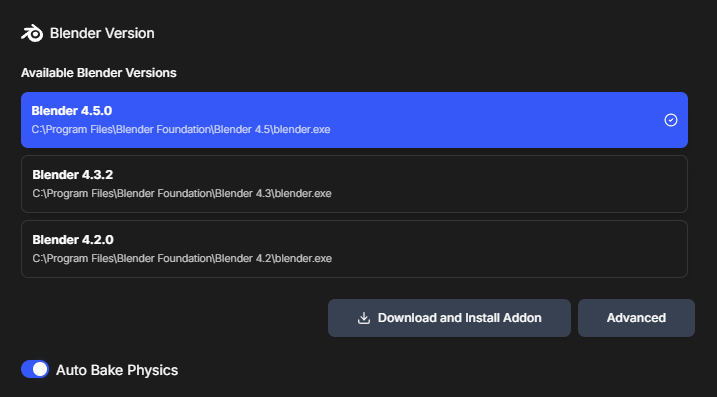
- Click the Settings button (gear icon) in the top-right corner
- Navigate to the "Blender Version" tab
- You'll see a list of available Blender versions
Quick Version Selection
The Blender Version tab displays a list of detected Blender installations:
- View available versions: See all Blender versions found on your system
- Select a version: Click on the version you want to use
- Version is active: The selected version is immediately set as active
Automatic Version Detection
RenderGod automatically scans for Blender installations when you first launch the application. This background scan detects:
- Common installation locations: Standard Blender installation paths
- Multiple versions: Finds all installed Blender versions
- Quick detection: Fast scan that completes in seconds
The versions that appear in the list come from this automatic background scan.
Advanced Version Detection
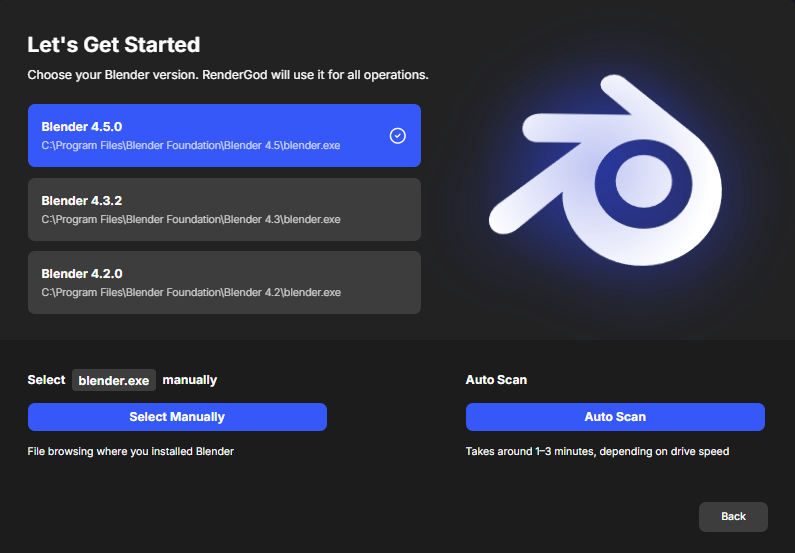
If your Blender version doesn't appear in the list, use the advanced options:
Option 1: Auto Scan (Deep Scan)
For a more thorough search of your system:
- Click the "Advanced" button
- Click "Auto Scan"
- Wait for the scan to complete (this can take several seconds to several minutes)
- The scan will search:
- All drives on your system
- Common installation directories
- Custom installation locations
- All Blender versions installed
Note: The deep scan duration depends on your system speed and the number of drives. Be patient - it's searching thoroughly for all Blender installations.
Option 2: Select Manually
If you have a custom Blender installation or the scan doesn't find your version:
- Click "Advanced"
- Click "Select Manually"
- A file dialog will open
- Navigate to your Blender installation folder
- Select the blender.exe file
- Click "Open" to set this version
Use Case: Manual selection is useful for:
- Portable Blender installations
- Custom installation locations
- Development builds of Blender
- Versions in non-standard locations
Verifying Your Selection
After selecting a Blender version:
- Check the active version: The selected version should be highlighted or marked as active
- Verify the path: The version should show the correct path to `blender.exe`
- Test it: Try importing a Blender file to verify the version works correctly
Changing Blender Versions
You can change the Blender version at any time:
- Go to Settings > Blender Version
- Select a different version from the list
- The new version is immediately active
- Note: All future render operations will use this new version
Important: When you change the Blender version:
- The addon will be installed to the new version (if you reinstall it)
- All new render jobs will use the new version
- Existing jobs in the queue will continue with their original version
Version Compatibility
Supported Versions
RenderGod works with:
- Blender 2.80 and later
- All stable Blender releases
- Beta and development builds (with some limitations)
Project Compatibility
- Version matching: Ideally, use the same Blender version that created your project
- Forward compatibility: Newer Blender versions can usually open older projects
- Backward compatibility: Older versions may not support newer project features
Best Practices
Version Selection
- Match project version: Use the Blender version that matches your projects
- Consistent version: Stick with one version for consistency
- Test compatibility: Verify your projects work with the selected version
Multiple Versions
If you have multiple Blender versions installed:
- Choose wisely: Select the version you use most frequently
- Project-specific: You can change versions if needed for specific projects
- Keep organized: Know which version you're using for each project
Troubleshooting
Version Not Detected
- Use Auto Scan: Try the deep scan option
- Manual selection: Use manual selection if scan doesn't work
- Check installation: Verify Blender is properly installed
- Reinstall Blender: Sometimes reinstalling helps detection
Wrong Version Selected
- Change immediately: Go to settings and select the correct version
- Check addon: Reinstall the addon if you change versions
- Verify projects: Ensure your projects are compatible with the selected version
Version Not Working
- Verify installation: Make sure Blender works when launched directly
- Check path: Ensure the path to `blender.exe` is correct
- Test manually: Try running Blender from the command line to verify it works
Related Settings
- Auto Bake Physics: Configure physics baking settings for your Blender version
- Addon Installation: The addon installs to the selected Blender version
- Default Settings: Configure default render settings for your Blender version
Your Blender version is now configured and ready for rendering!

© 2026 RenderGod. All rights reserved.