Importing Blender Files to RenderGod
Learn how to add Blender project files to your RenderGod render queue. Multiple import methods are available to suit your workflow preferences.
Importing Blender Files to RenderGod
Learn how to add Blender project files to your RenderGod render queue. Multiple import methods are available to suit your workflow preferences.
Overview
Importing Blender files is the first step in using RenderGod for batch rendering. You can add `.blend` files to your queue using several convenient methods. Once imported, RenderGod will automatically detect render settings from your Blender project.
Import Methods
RenderGod provides three primary methods for importing Blender files into your render queue:
Method 1: Drag and Drop
The simplest and most intuitive way to import Blender files.
- Locate your Blender file (.blend file) in Windows File Explorer
- Drag the file from File Explorer
- Drop it onto the RenderGod application window
- The file will be automatically added to your render queue
Tip: You can drag and drop multiple Blender files at once to add them all to the queue simultaneously.
Method 2: Import Button
Use the import button when you prefer clicking over dragging.
When Queue is Empty
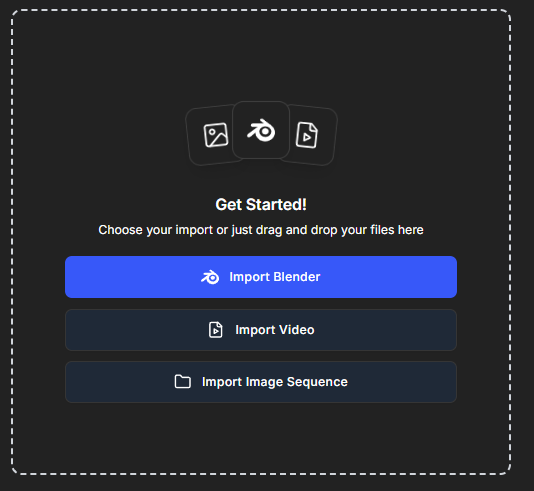
When your render queue is empty, you'll see a large "Import Blender" button in the center of the screen.
- Click the "Import Blender" button
- A file dialog will open
- Navigate to your Blender file location
- Select the `.blend` file(s) you want to import
- Click "Open" to add them to the queue
When Queue Has Items

When your queue already contains items, the import buttons move to the bottom-left corner of the interface.
- Locate the "Import Blender" button in the bottom-left panel
- Click the button
- Select your Blender file(s) from the file dialog
- The files will be added to the end of your queue
Method 3: Blender Addon (Direct Import)
The most advanced method - import directly from Blender using the official RenderGod addon.
- Install the RenderGod Blender Addon (see the "Installing the Blender Addon" section)
- Open your Blender project in Blender
- Save your project (important - the addon imports the last saved state)
- Use one of these methods in Blender:
- Option A: From the Render menu, select "Send To RenderGod"
- Option B: In the N-panel (press N in Blender), find the RenderGod tab and click "Send to RenderGod"
The project will be automatically sent to RenderGod and added to your queue.
Advantage: This method ensures your Blender file is in its most current saved state when imported.
What Happens After Import?
After importing a Blender file, RenderGod performs several automatic operations:
- File Analysis: The `.blend` file is analyzed to extract render settings
- Smart Detection: RenderGod automatically detects:
- Render resolution
- Output format
- Frame range
- Scene and camera settings
- View layer configuration
- Queue Addition: A new job card appears in your render queue
- Settings Display: The job card shows detected settings that you can modify if needed
Job Card Features
Each imported Blender file becomes a job card in your queue with these features:
- Render Settings Display: See detected resolution, format, and frame range
- Edit Capabilities: Modify render settings before rendering
- Preset Selection: Choose from saved render presets
- Reload Function: Update settings if you modify the Blender file
- Export Folder: Quick access to where renders will be saved
Best Practices
Before Importing
- Save your Blender project - Ensure all changes are saved before importing
- Check file paths - Verify that any linked assets (textures, images) are accessible
- Verify render settings - Make sure your Blender project's render settings are configured as desired
After Importing
- Review detected settings - Check that RenderGod correctly identified your render configuration
- Adjust if needed - Modify any settings that need changes
- Set export path - Configure where you want the rendered files saved
- Add presets - Apply saved presets for consistent output formats
Troubleshooting
File Not Importing
- Check file format: Ensure you're importing a .blend file (not .blend1 backup)
- Verify file integrity: Make sure the Blender file isn't corrupted
- Check permissions: Ensure RenderGod has permission to read the file
Settings Not Detected
- Use Reload: Click the "Reload" button on the job card to re-scan the file
- Save Blender project: Make sure you've saved your Blender project with the desired settings
- Check Blender version: Ensure the Blender version in RenderGod matches your project's Blender version
Multiple Files
- Batch import: You can import multiple files at once using drag and drop or the file dialog
- Queue order: Files are added in the order you import them
- Reordering: You can drag job cards to reorder them in the queue
Next Steps
After importing your Blender files:
- Learn about configuring render settings in the Blender Render Queue section
- Explore presets and defaults for consistent workflows
- Set up automated features like Auto Image Sequence to Video conversion
- Configure action when done settings for automatic shutdown or sleep
Your Blender files are now ready to be rendered!

© 2026 RenderGod. All rights reserved.